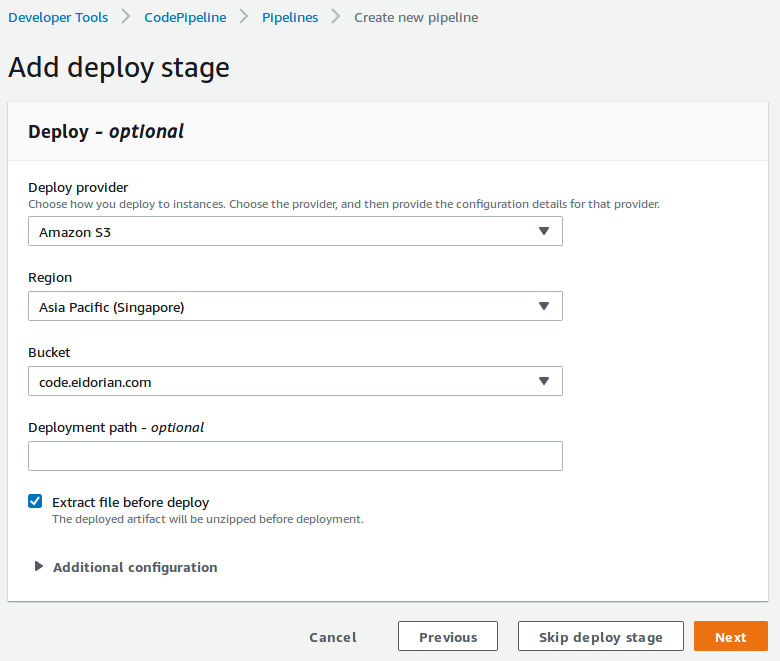
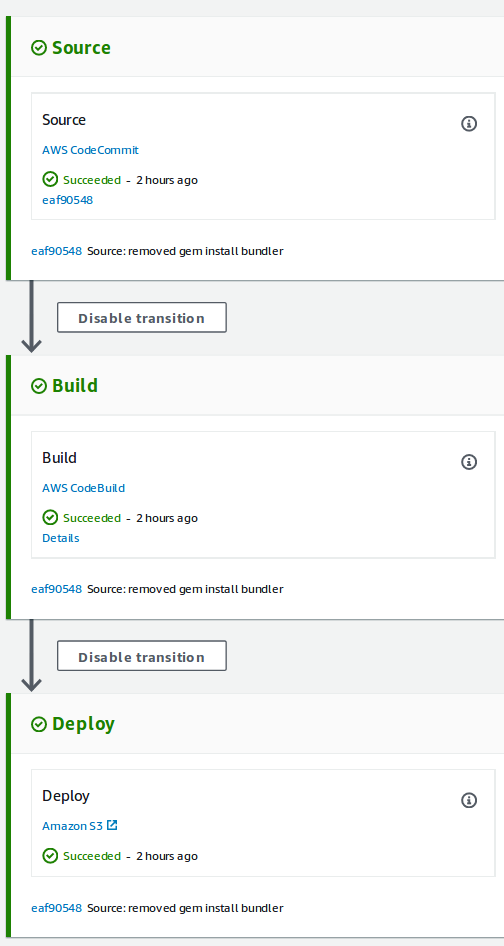
<?xml version="1.0" encoding="utf-8"?><feed xmlns="http://www.w3.org/2005/Atom" xml:lang="en"><generator uri="https://jekyllrb.com/" version="4.3.3">Jekyll</generator><link href="https://eidorian.com/feed.xml" rel="self" type="application/atom+xml" /><link href="https://eidorian.com/" rel="alternate" type="text/html" hreflang="en" /><updated>2026-05-21T15:37:10+08:00</updated><id>https://eidorian.com/feed.xml</id><title type="html">eidorian</title><subtitle>This is a tech blog about coding, tips, step-by-step guide, and troubleshooting mostly on linux, java, spring, cloud, and aws.</subtitle><entry><title type="html">Installing Linux Mint 22 on my 10 year old laptop</title><link href="https://eidorian.com/posts/install-linuxmint-22/" rel="alternate" type="text/html" title="Installing Linux Mint 22 on my 10 year old laptop" /><published>2026-05-14T00:00:00+08:00</published><updated>2026-05-14T00:00:00+08:00</updated><id>https://eidorian.com/posts/install-linuxmint-22</id><content type="html" xml:base="https://eidorian.com/posts/install-linuxmint-22/"><![CDATA[<p>A few months ago I did a fresh install of the latest version of <a href="https://www.linuxmint.com/">Linux Mint</a> on my ten year old laptop. At the time version LM 22.1 was the latest or at least the stable one. I always use <a href="https://www.linuxmint.com/edition.php?id=321">MATE desktop</a> since my laptop is old and I want a faster desktop with less GUI. As of this writing, there is already a <a href="https://www.linuxmint.com/download.php">22.3 version</a>. Prior to this installation, I was using <a href="https://blog.linuxmint.com/?m=202506">version 20 that reached its EOL</a>. Another reason I formatted my disk and made a fresh install was that some of my system files got corrupted. Partly, I blamed AI for it. I was also running out of disk space and wanted to remove the Windows OS that I had never used for a long time occupying some disk space.</p>

<p>The <a href="https://www.linuxmint.com/">Linux Mint official website</a> is well documented enough and can be easily followed when installing LM. I have done this many times and the easiest way is to create a <a href="https://linuxmint-installation-guide.readthedocs.io/en/latest/burn.html">bootable USB stick</a> with the chosen OS image you have selected. It is safe to just get the latest version and choose from Cinnamon, MATE or Xfce. You can get the list of versions from this <a href="https://www.linuxmint.com/download_all.php">page</a>.</p>

<h2 id="booting-from-the-usb-stick">Booting from the USB stick</h2>
<p>When you boot from the USB stick with the downloaded ISO image of Linux Mint you will get a look and feel of the OS immediately. Linux Mint is not yet installed on your computer so your hard disk is intact and untouched at this point. You would see how the desktop would look like. In the screenshot below, it is the MATE desktop of LM 22. Other desktop editions would look different. Cinnamon UI is more full but is quite heavy for old laptops. Xfce is the most lightweight but looks too old style in design.</p>

<p><img src="/assets/img/mint22-install/lm22-1-installer-desktop.png" alt="img-installer-desktop" />
<em>Linux Mint 22 Desktop from the bootable USB installer</em></p>

<p>At this point, it is recommended to test your different hardware devices to see their compatibility. Common issues in Linux are audio, wifi, and bluetooth. I would advise to test these devices before proceeding with the installation. Make sure you can connect to the internet via wifi. There is a default Firefox browser installed in the OS image so you can test watching a YouTube video, for example. In this way, aside from internet connectivity you can also test the video and audio devices. Open also the bluetooth manager and check if you can connect your devices like keyboard, mouse and speakers.</p>

<p>Here’s a screenshot of the bluetooth manager in Linux Mint.</p>

<p><img src="/assets/img/mint22-install/lm22-2-bluetooth-devices.png" alt="img-bluetooth-devices" />
<em>Linux Mint 22 bluetooth manager</em></p>

<h2 id="installing-linux-mint">Installing Linux Mint</h2>
<p>After testing your devices and you’re happy with the results and your chosen Linux desktop, proceed with the installation. In the Desktop screen on the top left, there’s a CD icon labeled <strong>Install Linux Mint</strong>. Click that to start the installation.</p>

<p>A welcome screen will be displayed and this is when you start configuring your installation. Start with choosing your language and the keyboard layout.</p>

<p><img src="/assets/img/mint22-install/lm22-3-language.png" alt="img-language" />
<em>Linux Mint 22 language selection</em></p>

<p><img src="/assets/img/mint22-install/lm22-4-keyboard.png" alt="img-keyboard" />
<em>Linux Mint 22 keyboard layout selection</em></p>

<p>Then when asked for the multimedia codecs, install it to have a wide range of compatibility with playing videos and audios.
<img src="/assets/img/mint22-install/lm22-5-media-codecs.png" alt="img-media-codecs" />
<em>Linux Mint 22 installing multimedia codecs</em></p>

<h2 id="managing-the-partition-table">Managing the partition table</h2>
<p>In the beginning, I mentioned that this was a full installation with the intent to wipe out my existing disk. I wanted to repartition, reformat and fully remove the Windows so my laptop would be all Linux without the dual-boot option.</p>

<p>The installer would detect that your disk is mounted with another OS. In my case it was the old Linux Mint 20 and Windows. I chose to unmount and repartition.</p>

<p><img src="/assets/img/mint22-install/lm22-6-unmount-partitions.png" alt="img-unmount-partitions" />
<em>Linux Mint 22 unmount partitions message</em></p>

<p>Choosing the install type is the crucial part. This decides what will be done to your disk and its current data.</p>

<blockquote>
  <p>Make sure you BACKED UP your data before proceeding.</p>
</blockquote>

<p>If I remember correctly, the default option is to erase and install Linux Mint as shown in this screenshot.</p>

<p><img src="/assets/img/mint22-install/lm22-7-install-type.png" alt="img-install-type" />
<em>Linux Mint 22 install type selection</em></p>

<p><img src="/assets/img/mint22-install/lm22-8-erase-disk.png" alt="img-erase-disk" />
<em>Linux Mint 22 erasing disk for a full install</em></p>

<p>However, my case was to manage my own partition so I selected the <strong>Something else</strong> option.</p>

<p><img src="/assets/img/mint22-install/lm22-9-manage-partition.png" alt="img-manage-partition" />
<em>Linux Mint 22 managing the partitions</em></p>

<p>My disk of 512GB was partitioned in the following manner:</p>

<table>
  <thead>
    <tr>
      <th>Partition</th>
      <th>Size</th>
      <th>File system</th>
      <th>Description</th>
    </tr>
  </thead>
  <tbody>
    <tr>
      <td>EFI</td>
      <td>1GB</td>
      <td>fat32</td>
      <td>partition used when the computer starts up</td>
    </tr>
    <tr>
      <td>Swap</td>
      <td>4GB</td>
      <td>linux-swap</td>
      <td>for additional memory, optional</td>
    </tr>
    <tr>
      <td>OS</td>
      <td>80GB</td>
      <td>ext4</td>
      <td><code class="language-plaintext highlighter-rouge">/</code> folder, Linux Mint system and other applications installation</td>
    </tr>
    <tr>
      <td>home</td>
      <td>400GB</td>
      <td>ext4</td>
      <td><code class="language-plaintext highlighter-rouge">/home</code> folder, user data where documents, photos, etc will be stored</td>
    </tr>
  </tbody>
</table>

<p>I prefer to separate my home folder with the system files in the root folder. If later my system files get corrupted again, I can install a new Linux in the OS partition without touching my home partition.</p>

<p>Currently, here’s how my partition table looks like in GParted after months of usage.</p>

<p><img src="/assets/img/mint22-install/lm22-gparted.png" alt="img-gparted-partition" />
<em>Snapshot of my partition table in GParted in Linux Mint 22</em></p>

<p>After deciding how much you want to allocate per partition, click <strong>Install Now</strong>.</p>

<p>A message warning will ask you to confirm that your data will be deleted and the new partition will be written. Again, check and confirm before you proceed.</p>

<p><img src="/assets/img/mint22-install/lm22-10-write-partition.png" alt="img-write-partition" />
<em>Linux Mint 22 writing partition confirmation warning</em></p>

<h2 id="installation-continues">Installation Continues</h2>
<p>The Linux Mint installation will continue and ask for more configuration like your location and creating the first user with username and password.</p>

<p><img src="/assets/img/mint22-install/lm22-11-location.png" alt="img-location" />
<em>Linux Mint 22 choosing location</em></p>

<p><img src="/assets/img/mint22-install/lm22-12-user.png" alt="img-user" />
<em>Linux Mint 22 entering user details</em></p>

<p>Then the actual writing to disk happens. The OS will be installed with system files, drivers and bundled applications. This will take several minutes and a progress bar is displayed.</p>

<p><img src="/assets/img/mint22-install/lm22-13-installation.png" alt="img-installation" />
<em>Linux Mint 22 installation with progress bar</em></p>

<p>You will also see the new feature highlights of the Linux Mint version your are installing.</p>

<p><img src="/assets/img/mint22-install/lm22-14-install-guide.png" alt="img-install-guide" />
<em>Linux Mint 22 features on display during installation</em></p>

<p>Finally a message prompt that says the installation is complete.</p>

<p><img src="/assets/img/mint22-install/lm22-15-install-complete.png" alt="img-install-complete" />
<em>Linux Mint 22 installation complete message</em></p>

<h2 id="restart-with-the-newly-installed-linux-mint">Restart with the newly installed Linux Mint</h2>
<p>Click <strong>Restart Now</strong> to fully complete the installation. Remember to remove the bootable USB stick to boot from your newly formatted hard drive with Linux Mint installed.</p>]]></content><author><name></name></author><category term="linux" /><category term="linux" /><category term="linuxmint" /><summary type="html"><![CDATA[A few months ago I did a fresh install of the latest version of Linux Mint on my ten year old laptop. At the time version LM 22.1 was the latest or at least the stable one. I always use MATE desktop since my laptop is old and I want a faster desktop with less GUI. As of this writing, there is already a 22.3 version. Prior to this installation, I was using version 20 that reached its EOL. Another reason I formatted my disk and made a fresh install was that some of my system files got corrupted. Partly, I blamed AI for it. I was also running out of disk space and wanted to remove the Windows OS that I had never used for a long time occupying some disk space.]]></summary></entry><entry><title type="html">Setup Google Drive in Linux using Rclone</title><link href="https://eidorian.com/posts/setup-google-drive-in-linux-using-rclone/" rel="alternate" type="text/html" title="Setup Google Drive in Linux using Rclone" /><published>2026-05-04T00:00:00+08:00</published><updated>2026-05-04T00:00:00+08:00</updated><id>https://eidorian.com/posts/setup-google-drive-in-linux-using-rclone</id><content type="html" xml:base="https://eidorian.com/posts/setup-google-drive-in-linux-using-rclone/"><![CDATA[<p>Google Drive does not officially support a Linux client. There are several third party tools and one of them is <a href="https://rclone.org/"><code class="language-plaintext highlighter-rouge">rclone</code></a>. It is free and open-source but uses command-line only and require some technical knowledge to setup and use. I’ll try to explain here the step-by-step on how to configure it and what are some basic commands to backup files in Linux to Google Drive.</p>

<h2 id="install-the-rclone-client">Install the rclone client</h2>
<p>First, install the rclone client.</p>

<div class="language-bash highlighter-rouge"><div class="highlight"><pre class="highlight"><code><table class="rouge-table"><tbody><tr><td class="rouge-gutter gl"><pre class="lineno">1
</pre></td><td class="rouge-code"><pre><span class="nb">sudo </span>apt <span class="nb">install </span>rclone
</pre></td></tr></tbody></table></code></pre></div></div>

<p>You can also <a href="https://rclone.org/downloads/">download</a> and install direct from the rclone site.</p>

<h2 id="create-a-developer-app-in-google-cloud">Create a developer app in Google Cloud</h2>
<p>Next, you need to create a developer app in Google Cloud. In this app, you will create and configure API keys, consent form, scopes of access and other details to basically tell your users, in this case just you, that you are allowing this app to access your Drive and your files. The point of the app is to be able to create API tokens that you can then configure in rclone so that it can access your Google Drive.</p>

<h3 id="enable-the-google-drive-api">Enable the Google Drive API</h3>
<ol>
  <li>Login to the <a href="https://console.developers.google.com/">Google API Console</a>.</li>
  <li>In the left hand navigation menu under <strong>Products</strong> select <strong>APIs &amp; Services - Enabled APIs and Services</strong>.</li>
  <li>There is a tab labeled <strong>”+ Enable APIs and Services”</strong>. Click it and search for the <strong>Google Drive API</strong> and enable it.</li>
</ol>

<h3 id="create-a-consent-screen">Create a Consent Screen</h3>
<ol>
  <li>Go to <strong>OAuth Consent Screen</strong> in the left hand panel.</li>
  <li>Click <strong>Get Started</strong> and add an app name e.g. <code class="language-plaintext highlighter-rouge">rclone</code>.</li>
  <li>In the support email, enter your email address.</li>
  <li>Then choose <strong>External</strong> in the Audience.</li>
  <li>Add another contact email and click <strong>Finish</strong>.</li>
</ol>

<h3 id="create-an-oauth-client">Create an OAuth Client</h3>
<ol>
  <li>In <strong>Clients</strong> create an <strong>OAuth 2.0 Client IDs</strong>.</li>
  <li>Choose <strong>Desktop app</strong> as the type.</li>
  <li>Name your client e.g. <code class="language-plaintext highlighter-rouge">my-rclone-desktop</code>.</li>
  <li>A pop-up will show the Client ID and Client Secret. Make a copy of them and save them somewhere else. These are the credentials you will use in rlcone config.</li>
</ol>

<p>More details and references <a href="https://rclone.org/drive/#making-your-own-client-id">here</a>.</p>

<h2 id="configure-google-drive-in-rclone">Configure Google Drive in rclone</h2>
<p>In <code class="language-plaintext highlighter-rouge">rclone config</code> choose Google Drive as the type of storage. Then follow the steps. It will ask you to use the web browser to authenticate. From there you will see the consent and the credentials will be used and configured.</p>

<p>Refer to <a href="https://rclone.org/drive/#configuration">this sample</a>.</p>

<h2 id="test-the-connectivity">Test the connectivity</h2>
<p>Now let’s test the connectivity with some basic rclone commands.</p>

<ol>
  <li>
    <p>Make a folder <code class="language-plaintext highlighter-rouge">linuxmint</code> in the home directory to store the backup files.</p>

    <div class="language-bash highlighter-rouge"><div class="highlight"><pre class="highlight"><code><table class="rouge-table"><tbody><tr><td class="rouge-gutter gl"><pre class="lineno">1
</pre></td><td class="rouge-code"><pre> rclone <span class="nb">mkdir </span>gdrive:/linuxmint
</pre></td></tr></tbody></table></code></pre></div>    </div>
  </li>
  <li>
    <p>Create a dummy test file and upload in the backup folder.</p>

    <div class="language-bash highlighter-rouge"><div class="highlight"><pre class="highlight"><code><table class="rouge-table"><tbody><tr><td class="rouge-gutter gl"><pre class="lineno">1
2
</pre></td><td class="rouge-code"><pre> <span class="nb">echo</span> <span class="s2">"testing google drive in rclone"</span> <span class="o">&gt;</span> /tmp/my-notes.txt
 rclone copy /tmp/my-notes.txt gdrive:/linuxmint/
</pre></td></tr></tbody></table></code></pre></div>    </div>
  </li>
  <li>
    <p>Verify the backup folder contents.</p>

    <div class="language-bash highlighter-rouge"><div class="highlight"><pre class="highlight"><code><table class="rouge-table"><tbody><tr><td class="rouge-gutter gl"><pre class="lineno">1
2
3
4
</pre></td><td class="rouge-code"><pre> rclone <span class="nb">ls </span>gdrive:/linuxmint
 rclone copyto gdrive:/linuxmint/my-notes.txt /tmp/my-notes-copy.txt
 diff /tmp/my-notes.txt /tmp/my-notes-copy.txt
 <span class="nb">cat</span> /tmp/my-notes.txt /tmp/my-notes-copy.txt
</pre></td></tr></tbody></table></code></pre></div>    </div>

    <p>Sample output:</p>

    <div class="language-bash highlighter-rouge"><div class="highlight"><pre class="highlight"><code><table class="rouge-table"><tbody><tr><td class="rouge-gutter gl"><pre class="lineno">1
2
3
4
5
6
7
8
</pre></td><td class="rouge-code"><pre> rclone <span class="nb">ls </span>gdrive:/linuxmint
 <span class="nv">$ </span>rclone <span class="nb">ls </span>gdrive:/linuxmint
    31 my-notes.txt
 <span class="nv">$ </span>rclone copyto gdrive:/linuxmint/my-notes.txt /tmp/my-notes-copy.txt
 <span class="nv">$ </span>diff /tmp/my-notes.txt /tmp/my-notes-copy.txt
 <span class="nv">$ </span><span class="nb">cat</span> /tmp/my-notes.txt /tmp/my-notes-copy.txt
 testing google drive <span class="k">in </span>rclone
 testing google drive <span class="k">in </span>rclone
</pre></td></tr></tbody></table></code></pre></div>    </div>
  </li>
</ol>

<p>For reference, here’s a list of <a href="https://rclone.org/commands/">rclone commands</a>.</p>]]></content><author><name></name></author><category term="linux" /><category term="linux" /><category term="rclone" /><category term="gdrive" /><category term="google" /><summary type="html"><![CDATA[Google Drive does not officially support a Linux client. There are several third party tools and one of them is rclone. It is free and open-source but uses command-line only and require some technical knowledge to setup and use. I’ll try to explain here the step-by-step on how to configure it and what are some basic commands to backup files in Linux to Google Drive.]]></summary></entry><entry><title type="html">Set-up a React Native project from scratch</title><link href="https://eidorian.com/posts/react-native-set-up/" rel="alternate" type="text/html" title="Set-up a React Native project from scratch" /><published>2025-10-24T00:00:00+08:00</published><updated>2025-10-24T00:00:00+08:00</updated><id>https://eidorian.com/posts/react-native-set-up</id><content type="html" xml:base="https://eidorian.com/posts/react-native-set-up/"><![CDATA[<h2 id="create-a-project-directory">Create a project directory</h2>

<div class="language-bash highlighter-rouge"><div class="highlight"><pre class="highlight"><code><table class="rouge-table"><tbody><tr><td class="rouge-gutter gl"><pre class="lineno">1
2
</pre></td><td class="rouge-code"><pre><span class="nb">mkdir </span>my-simple-app
<span class="nb">cd </span>my-simple-app
</pre></td></tr></tbody></table></code></pre></div></div>

<h2 id="install">Install</h2>

<div class="language-bash highlighter-rouge"><div class="highlight"><pre class="highlight"><code><table class="rouge-table"><tbody><tr><td class="rouge-gutter gl"><pre class="lineno">1
2
</pre></td><td class="rouge-code"><pre>npx create-expo-app@latest <span class="nb">.</span>
npm run reset-project
</pre></td></tr></tbody></table></code></pre></div></div>

<p>https://www.nativewind.dev/docs/getting-started/installation</p>

<div class="language-bash highlighter-rouge"><div class="highlight"><pre class="highlight"><code><table class="rouge-table"><tbody><tr><td class="rouge-gutter gl"><pre class="lineno">1
2
</pre></td><td class="rouge-code"><pre>npm <span class="nb">install </span>nativewind tailwindcss react-native-reanimated react-native-safe-area-context
npx tailwindcss init
</pre></td></tr></tbody></table></code></pre></div></div>

<div class="language-js highlighter-rouge"><div class="highlight"><pre class="highlight"><code><table class="rouge-table"><tbody><tr><td class="rouge-gutter gl"><pre class="lineno">1
2
3
4
5
6
7
8
9
</pre></td><td class="rouge-code"><pre><span class="cm">/** @type {import('tailwindcss').Config} */</span>
<span class="nx">module</span><span class="p">.</span><span class="nx">exports</span> <span class="o">=</span> <span class="p">{</span>
  <span class="na">content</span><span class="p">:</span> <span class="p">[</span><span class="dl">"</span><span class="s2">./app/**/*.{js,jsx,ts,tsx}</span><span class="dl">"</span><span class="p">,</span> <span class="dl">"</span><span class="s2">./components/**/*.{js,jsx,ts,tsx}</span><span class="dl">"</span><span class="p">],</span>
  <span class="na">presets</span><span class="p">:</span> <span class="p">[</span><span class="nf">require</span><span class="p">(</span><span class="dl">"</span><span class="s2">nativewind/preset</span><span class="dl">"</span><span class="p">)],</span>
  <span class="na">theme</span><span class="p">:</span> <span class="p">{</span>
    <span class="na">extend</span><span class="p">:</span> <span class="p">{},</span>
  <span class="p">},</span>
  <span class="na">plugins</span><span class="p">:</span> <span class="p">[],</span>
<span class="p">}</span>
</pre></td></tr></tbody></table></code></pre></div></div>

<p>Add <code class="language-plaintext highlighter-rouge">globals.css</code> in app folder.</p>

<div class="language-css highlighter-rouge"><div class="highlight"><pre class="highlight"><code><table class="rouge-table"><tbody><tr><td class="rouge-gutter gl"><pre class="lineno">1
2
3
</pre></td><td class="rouge-code"><pre><span class="k">@tailwind</span> <span class="n">base</span><span class="p">;</span>
<span class="k">@tailwind</span> <span class="n">components</span><span class="p">;</span>
<span class="k">@tailwind</span> <span class="n">utilities</span><span class="p">;</span>
</pre></td></tr></tbody></table></code></pre></div></div>

<p>Add <code class="language-plaintext highlighter-rouge">babel.config.js</code> in the project folder.</p>

<div class="language-js highlighter-rouge"><div class="highlight"><pre class="highlight"><code><table class="rouge-table"><tbody><tr><td class="rouge-gutter gl"><pre class="lineno">1
2
3
4
5
6
7
8
9
</pre></td><td class="rouge-code"><pre><span class="nx">module</span><span class="p">.</span><span class="nx">exports</span> <span class="o">=</span> <span class="nf">function </span><span class="p">(</span><span class="nx">api</span><span class="p">)</span> <span class="p">{</span>
  <span class="nx">api</span><span class="p">.</span><span class="nf">cache</span><span class="p">(</span><span class="kc">true</span><span class="p">);</span>
  <span class="k">return</span> <span class="p">{</span>
    <span class="na">presets</span><span class="p">:</span> <span class="p">[</span>
      <span class="p">[</span><span class="dl">"</span><span class="s2">babel-preset-expo</span><span class="dl">"</span><span class="p">,</span> <span class="p">{</span> <span class="na">jsxImportSource</span><span class="p">:</span> <span class="dl">"</span><span class="s2">nativewind</span><span class="dl">"</span> <span class="p">}],</span>
      <span class="dl">"</span><span class="s2">nativewind/babel</span><span class="dl">"</span><span class="p">,</span>
    <span class="p">],</span>
  <span class="p">};</span>
<span class="p">};</span>
</pre></td></tr></tbody></table></code></pre></div></div>

<p>Add <code class="language-plaintext highlighter-rouge">metro.config.js</code>. Make sure the input points to the <code class="language-plaintext highlighter-rouge">globals.css</code> location.</p>

<div class="language-bash highlighter-rouge"><div class="highlight"><pre class="highlight"><code><table class="rouge-table"><tbody><tr><td class="rouge-gutter gl"><pre class="lineno">1
</pre></td><td class="rouge-code"><pre>npx expo customize metro.config.js
</pre></td></tr></tbody></table></code></pre></div></div>

<div class="language-js highlighter-rouge"><div class="highlight"><pre class="highlight"><code><table class="rouge-table"><tbody><tr><td class="rouge-gutter gl"><pre class="lineno">1
2
3
4
5
6
</pre></td><td class="rouge-code"><pre><span class="kd">const</span> <span class="p">{</span> <span class="nx">getDefaultConfig</span> <span class="p">}</span> <span class="o">=</span> <span class="nf">require</span><span class="p">(</span><span class="dl">"</span><span class="s2">expo/metro-config</span><span class="dl">"</span><span class="p">);</span>
<span class="kd">const</span> <span class="p">{</span> <span class="nx">withNativeWind</span> <span class="p">}</span> <span class="o">=</span> <span class="nf">require</span><span class="p">(</span><span class="dl">'</span><span class="s1">nativewind/metro</span><span class="dl">'</span><span class="p">);</span>
 
<span class="kd">const</span> <span class="nx">config</span> <span class="o">=</span> <span class="nf">getDefaultConfig</span><span class="p">(</span><span class="nx">__dirname</span><span class="p">)</span>
 
<span class="nx">module</span><span class="p">.</span><span class="nx">exports</span> <span class="o">=</span> <span class="nf">withNativeWind</span><span class="p">(</span><span class="nx">config</span><span class="p">,</span> <span class="p">{</span> <span class="na">input</span><span class="p">:</span> <span class="dl">'</span><span class="s1">./app/globals.css</span><span class="dl">'</span> <span class="p">})</span>
</pre></td></tr></tbody></table></code></pre></div></div>

<h2 id="download-the-expo-app">Download the Expo app</h2>

<h2 id="run">Run</h2>

<div class="language-bash highlighter-rouge"><div class="highlight"><pre class="highlight"><code><table class="rouge-table"><tbody><tr><td class="rouge-gutter gl"><pre class="lineno">1
</pre></td><td class="rouge-code"><pre>npx expo start
</pre></td></tr></tbody></table></code></pre></div></div>]]></content><author><name></name></author><category term="react" /><category term="react" /><category term="mobile" /><category term="android" /><category term="ios" /><category term="tailwind" /><summary type="html"><![CDATA[Create a project directory]]></summary></entry><entry><title type="html">Bootstrap a React Typescript Tailwind v4 App with Gemini CLI</title><link href="https://eidorian.com/posts/bootstrap-react-ts-tailwind-gemini/" rel="alternate" type="text/html" title="Bootstrap a React Typescript Tailwind v4 App with Gemini CLI" /><published>2025-07-24T00:00:00+08:00</published><updated>2025-08-02T12:31:53+08:00</updated><id>https://eidorian.com/posts/bootstrap-react-ts-tailwind-gemini</id><content type="html" xml:base="https://eidorian.com/posts/bootstrap-react-ts-tailwind-gemini/"><![CDATA[<p>Code generation has gone a long way in the past two to three years. I started exploring <a href="https://aws.amazon.com/blogs/aws/amazon-codewhisperer-free-for-individual-use-is-now-generally-available/">Amazon CodeWhisperer</a> back then. It was still in the very early stages but it was already fascinating to see code completion and generation of simple commonly used algorithm like sorting arrays and string manipulation. Now, AI with agents are not just limited to code snippets. They can build an entire project for you.</p>

<p>Recently, I have been “vibe coding” with <a href="https://github.com/google-gemini/gemini-cli">Gemini CLI</a> and have released a side-project to production with its help (or it released the project with my help?). Throughout the process, I realized that I used AI in an already bootstrapped project with my preferred stack and framework. In this post, I want to try starting from scratch and will share my experience on how to bootstrap an empty project with Gemini CLI.</p>

<p>I have also recorded this build process and you can watch it <a href="https://youtu.be/C8kcJzTranQ">here</a>.</p>

<h2 id="add-context-in-geminimd">Add context in GEMINI.md</h2>
<p>First, let’s write the context in the <code class="language-plaintext highlighter-rouge">GEMINI.md</code> file. This will guide the AI on what we want to build. It contains the steps necessary to create a new project in React Typescript, installs the dependenies, setup Tailwind CSS version 4, clean-up the default CSS, and create a new landing page with a message. By giving such context, you have more control on what Gemini will do in building the project.</p>

<div class="language-md highlighter-rouge"><div class="highlight"><pre class="highlight"><code><table class="rouge-table"><tbody><tr><td class="rouge-gutter gl"><pre class="lineno">1
2
3
4
5
6
7
8
9
10
11
12
13
14
15
16
17
18
19
20
21
22
23
24
25
26
27
28
29
30
31
32
33
34
35
36
37
38
39
40
41
42
43
44
45
46
47
48
49
50
51
52
53
54
55
56
57
58
59
60
61
62
63
</pre></td><td class="rouge-code"><pre><span class="gh"># GEMINI</span>

<span class="gu">## Bootstrap a React Typescript app with Tailwind v4</span>
<span class="gu">### Create a new React TS project</span>
<span class="p">1.</span> Create the project<span class="sb">

    ```
    npm create vite@latest [app-name] -- --template react-ts
    ```

</span><span class="p">1.</span> Go to the project folder and install dependencies.<span class="sb">

    ```
    cd [app-name]
    npm install
    ```

</span><span class="gu">### Add Tailwind v4 in the project</span>
<span class="p">1.</span> Install Tailwind CSS for Vite. Make sure you are in the project folder.<span class="sb">

    ```
    npm install tailwindcss @tailwindcss/vite
    ```

</span><span class="p">1.</span> Edit <span class="sb">`vite.config.ts`</span>.<span class="sb">

    1. Add `tailwindcss/vite` in the imports section.

        ```
        import tailwindcss from '@tailwindcss/vite'
        ```

    1. Add Tailwind CSS in the plugins section. If there are other plugins defined, do not remove them. Just append `tailwindcss()` at the end.

        ```
        export default defineConfig({
        plugins: [
            tailwindcss(),
        ],
        })
        ```

</span><span class="p">1.</span> Clear the default CSS files.
<span class="p">    1.</span> Delete App.css and index.css<span class="sb">

    ```
    rm src/App.css
    rm src/index.css
    ```

    1. Create a new index.css.

    ```
    touch src/index.css
    ```

    1. Edit `src/index.css` and add the Tailwind CSS import.

    ```
    @import "tailwindcss";
    ```

</span><span class="p">1.</span> Refer to the Tailwind installation using Vite <span class="p">[</span><span class="nv">doc</span><span class="p">](</span><span class="sx">https://tailwindcss.com/docs/installation/using-vite</span><span class="p">)</span> for details.
</pre></td></tr></tbody></table></code></pre></div></div>

<h2 id="run-gemini-cli-in-an-empty-folder">Run Gemini CLI in an empty folder</h2>
<p>Create an empty folder and save the <code class="language-plaintext highlighter-rouge">GEMINI.md</code> file in it.</p>

<div class="language-bash highlighter-rouge"><div class="highlight"><pre class="highlight"><code><table class="rouge-table"><tbody><tr><td class="rouge-gutter gl"><pre class="lineno">1
2
3
</pre></td><td class="rouge-code"><pre><span class="nb">mkdir </span>bootstrap-react-ts-twind
<span class="nb">cd </span>bootstrap-react-ts-twind
<span class="nb">touch </span>GEMINI.md <span class="c">#update this file</span>
</pre></td></tr></tbody></table></code></pre></div></div>

<div class="language-bash highlighter-rouge"><div class="highlight"><pre class="highlight"><code><table class="rouge-table"><tbody><tr><td class="rouge-gutter gl"><pre class="lineno">1
</pre></td><td class="rouge-code"><pre>npx https://github.com/google-gemini/gemini-cli
</pre></td></tr></tbody></table></code></pre></div></div>

<p><img src="/assets/img/gemini-cli-react/gemini-cli-console.png" alt="gemini-cli-console" />
<em>Gemini CLI console</em></p>

<h2 id="prompt-gemini">Prompt Gemini</h2>
<p>With the Gemini CLI running, give it the instructions to start your project.</p>

<div class="language-plaintext highlighter-rouge"><div class="highlight"><pre class="highlight"><code><table class="rouge-table"><tbody><tr><td class="rouge-gutter gl"><pre class="lineno">1
2
3
4
5
6
7
8
9
10
</pre></td><td class="rouge-code"><pre>Create a web app called my-app that displays the following in the landing page.

"Welcome to my React Typescript app built by Gemini CLI."

Use Vite and Tailwind.
Install Tailwind CSS in the project.
Clean the default CSS files and use Tailwind CSS.
Use Tailwind to design the styles of the landing page and make it appealing. 

Follow the steps at @GEMINI.md
</pre></td></tr></tbody></table></code></pre></div></div>

<p>Somehow I had to explicitly mention in the prompt to follow the <code class="language-plaintext highlighter-rouge">GEMINI.md</code> document.</p>

<blockquote>
  <p>When you type <code class="language-plaintext highlighter-rouge">@</code> in Gemini CLI, it adds context to the prompt by referencing a file. See <code class="language-plaintext highlighter-rouge">/help</code> for details and other commands.</p>
</blockquote>

<h2 id="gemini-cli-building-process">Gemini CLI building process</h2>
<p>As Gemini runs and sets up your project, it will prompt you everytime it needs to execute a command. Review it and accept to proceed.</p>

<p>In this screenshot, it asks to execute the project creation using <strong>Vite</strong> and the React TS template. This is basically following the document we created which is correct.</p>

<p><img src="/assets/img/gemini-cli-react/gemini-cli-exec-prompt.png" alt="gemini-cli-exec-prompt" />
<em>Gemini CLI execution prompt</em></p>

<h2 id="gemini-pro-limit">Gemini Pro limit</h2>
<p>Once in a while, you might hit a limit using the <strong>Gemini Pro 2.5</strong> model. It will force you to use a smaller but faster model in <strong>Gemini 2.5 Flash</strong>. Just retry the prompt if this happens.</p>

<p><img src="/assets/img/gemini-cli-react/gemini-cli-pro-limit.png" alt="gemini-cli-pro-limit" />
<em>Gemini CLI execution prompt</em></p>

<h2 id="test-the-react-app">Test the React app</h2>
<p>After Gemini completes, run the app locally.</p>

<div class="language-plaintext highlighter-rouge"><div class="highlight"><pre class="highlight"><code><table class="rouge-table"><tbody><tr><td class="rouge-gutter gl"><pre class="lineno">1
</pre></td><td class="rouge-code"><pre>npm run dev
</pre></td></tr></tbody></table></code></pre></div></div>

<p>Check the landing page at <code class="language-plaintext highlighter-rouge">http://localhost:5173/</code>.</p>

<p>It worked! It’s pretty cool to see a working project setup without wrinting any code.</p>

<p>Now your mileage may vary as AI can be unpredictable at times. Retry if that happens. But with a clear context guide, the outcome can be more deterministic.</p>

<p><img src="/assets/img/gemini-cli-react/gemini-cli-react-landing-page.png" alt="gemini-cli-react-landing-page" />
<em>Gemini CLI React landing page</em></p>

<h2 id="verify-the-project-contents">Verify the project contents</h2>
<p>Now, let’s verify the contents of the project whether it followed the steps properly.</p>

<p>Dependencies were installed.</p>

<div class="language-bash highlighter-rouge"><div class="highlight"><pre class="highlight"><code><table class="rouge-table"><tbody><tr><td class="rouge-gutter gl"><pre class="lineno">1
2
3
4
5
6
7
8
9
10
11
12
13
14
15
16
17
</pre></td><td class="rouge-code"><pre><span class="nv">$ </span>npm list
my-app@0.0.0 bootstrap-react-ts-twind/my-app
├── @eslint/js@9.31.0
├── @tailwindcss/vite@4.1.11
├── @types/react-dom@19.1.6
├── @types/react@19.1.8
├── @vitejs/plugin-react@4.7.0
├── eslint-plugin-react-hooks@5.2.0
├── eslint-plugin-react-refresh@0.4.20
├── eslint@9.31.0
├── globals@16.3.0
├── react-dom@19.1.0
├── react@19.1.0
├── tailwindcss@4.1.11
├── typescript-eslint@8.38.0
├── typescript@5.8.3
└── vite@7.0.5
</pre></td></tr></tbody></table></code></pre></div></div>

<p>The Vite config was updated.</p>

<div class="language-bash highlighter-rouge"><div class="highlight"><pre class="highlight"><code><table class="rouge-table"><tbody><tr><td class="rouge-gutter gl"><pre class="lineno">1
2
3
4
5
6
7
8
9
</pre></td><td class="rouge-code"><pre><span class="nv">$ </span><span class="nb">cat </span>vite.config.ts 
import <span class="o">{</span> defineConfig <span class="o">}</span> from <span class="s1">'vite'</span>
import react from <span class="s1">'@vitejs/plugin-react'</span>
import tailwindcss from <span class="s1">'@tailwindcss/vite'</span>

// https://vite.dev/config/
<span class="nb">export </span>default defineConfig<span class="o">({</span>
  plugins: <span class="o">[</span>react<span class="o">()</span>, tailwindcss<span class="o">()]</span>,
<span class="o">})</span>
</pre></td></tr></tbody></table></code></pre></div></div>
<p>The default css files have been removed and a new <code class="language-plaintext highlighter-rouge">index.css</code> created.</p>

<div class="language-bash highlighter-rouge"><div class="highlight"><pre class="highlight"><code><table class="rouge-table"><tbody><tr><td class="rouge-gutter gl"><pre class="lineno">1
2
3
4
</pre></td><td class="rouge-code"><pre><span class="nv">$ </span><span class="nb">ls </span>src/<span class="k">*</span>.css
src/index.css
<span class="nv">$ </span><span class="nb">cat </span>src/index.css 
@import <span class="s2">"tailwindcss"</span><span class="p">;</span>
</pre></td></tr></tbody></table></code></pre></div></div>

<h2 id="enhance-the-workflow">Enhance the workflow</h2>
<p>At this point, our setup is complete. We can just ask Gemini to spin-up new projects by just giving the project name and it creates the same steps every time following our preferred stack and framework. However, there is still a chance that it can make mistakes. It might not follow our steps and do things on its own. To make it more predictable, we just ask Gemini to automate this whole thing and create a script instead. Then the script will bootstrap the project. This also saves us AI usage especially if you use API keys in your Gemini sessions.</p>

<h2 id="generate-a-bootstrap-script">Generate a bootstrap script</h2>
<p>We ask Gemini to create a Python script following our guidelines.</p>

<div class="language-plaintext highlighter-rouge"><div class="highlight"><pre class="highlight"><code><table class="rouge-table"><tbody><tr><td class="rouge-gutter gl"><pre class="lineno">1
2
3
</pre></td><td class="rouge-code"><pre>Create a Python script that follows the bootstrap steps in creating a React TS Tailwind app.

Refer to @GEMINI.md
</pre></td></tr></tbody></table></code></pre></div></div>

<h2 id="gemini-writing-python-coding-process">Gemini writing Python coding process</h2>
<p>Same as before, Gemini will prompt you again to confirm if the code is correct or at least what you expect it to write. You can review this and accept or propose other changes. Most of the time you just accept and test it out.</p>

<p><img src="/assets/img/gemini-cli-react/gemini-cli-python-creation.png" alt="gemini-cli-python-creation" />
<em>Gemini CLI writing Python code</em></p>

<h2 id="test-the-script">Test the script</h2>
<p>Now, we run and test the newly created script and pass the project name like <code class="language-plaintext highlighter-rouge">my-app-3</code>.</p>

<div class="language-bash highlighter-rouge"><div class="highlight"><pre class="highlight"><code><table class="rouge-table"><tbody><tr><td class="rouge-gutter gl"><pre class="lineno">1
2
3
4
5
6
7
8
9
10
11
12
13
14
15
16
17
18
19
20
21
22
23
24
25
26
27
28
29
30
31
32
33
34
35
36
37
38
39
40
41
42
43
44
45
46
47
</pre></td><td class="rouge-code"><pre><span class="nv">$ </span>python3 bootstrap_react_ts_tailwind.py my-app-3
Bootstrapping React TypeScript Tailwind app: my-app-3

Step 1: Creating React TS project...
STDOUT:

...<span class="o">(</span>redacted <span class="k">for </span>brevity<span class="o">)</span>

Step 2: Installing project dependencies...
STDOUT:

added 188 packages, and audited 189 packages <span class="k">in </span>11s

...

Step 3: Installing Tailwind CSS <span class="k">for </span>Vite...
STDOUT:

<span class="nt">---</span>

Step 4: Modifying vite.config.ts...
vite.config.ts modified successfully.

Step 5: Clearing default CSS files...
Deleted ... /my-app-3/src/App.css
Deleted ... /my-app-3/src/index.css

Step 6: Creating new src/index.css with Tailwind import...
Created and wrote to ... /my-app-3/src/index.css

Step 7: Modifying src/App.tsx <span class="k">for </span>welcome message and styling...
src/App.tsx modified successfully.

Bootstrap process completed successfully!
To run your app, navigate to the <span class="s1">'my-app-3'</span> directory and run <span class="s1">'npm run dev'</span>

<span class="nv">$ </span><span class="nb">cd </span>my-app-3/
<span class="nv">$ </span>npm run dev

<span class="o">&gt;</span> my-app-3@0.0.0 dev
<span class="o">&gt;</span> vite

  VITE v7.0.5  ready <span class="k">in </span>587 ms

  ➜  Local:   http://localhost:5173/
  ➜  Network: use <span class="nt">--host</span> to expose
  ➜  press h + enter to show <span class="nb">help</span>
</pre></td></tr></tbody></table></code></pre></div></div>

<p>Here’s the new page created by the Python script.</p>

<p><img src="/assets/img/gemini-cli-react/gemini-cli-python-landing-page.png" alt="gemini-cli-python-landing-page" />
<em>Gemini CLI Python generated landing page</em></p>

<h2 id="bug-fixing">Bug fixing</h2>
<p>In the process while I was doing this, the first Python script generated by Gemini had a bug because it didn’t update the landing page <code class="language-plaintext highlighter-rouge">src/App.tsx</code>. I had to prompt it again to fix the landing page with a welcome message and use Tailwind CSS. To know more about the details of this, you can watch the <a href="https://youtu.be/C8kcJzTranQ">video</a> walkthrough where I recorded all the steps from beginning to end.</p>

<iframe width="560" height="315" src="https://www.youtube.com/embed/C8kcJzTranQ?si=RtbIVDh08GmUvHWc" title="YouTube video player" frameborder="0" allow="accelerometer; autoplay; clipboard-write; encrypted-media; gyroscope; picture-in-picture; web-share" referrerpolicy="strict-origin-when-cross-origin" allowfullscreen=""></iframe>

<h2 id="conclusion">Conclusion</h2>
<p>With Gemini CLI and its agentic tools, it does not just talk to you via chat but also do the execution of reading docs, writing scripts, and fixing bugs. We started with an empty folder with the idea of a workflow where we bootstrap a project from scratch with our preferred framework. Using context files like the <code class="language-plaintext highlighter-rouge">GEMINI.md</code>, we can guide AI to follow the steps within the context so that it builds the app according to our guidelines. This session with Gemini CLI only took 10 mins and the whole process including writing the guide is around 20 minutes. At the end, we have a working Python script that quickly builds a new React Typescript project with Tailwind CSS.</p>

<h2 id="checkout-the-code-in-github">Checkout the code in Github</h2>
<p>The code including the Python script, <code class="language-plaintext highlighter-rouge">GEMINI.md</code>, and the sample project generated can be found <a href="https://github.com/madrian/bootstrap-react-ts-twind">here</a>.</p>]]></content><author><name></name></author><category term="ai" /><category term="ai" /><category term="gemini" /><category term="gemini" /><category term="react" /><category term="typescript" /><category term="tailwind" /><category term="vite" /><summary type="html"><![CDATA[Code generation has gone a long way in the past two to three years. I started exploring Amazon CodeWhisperer back then. It was still in the very early stages but it was already fascinating to see code completion and generation of simple commonly used algorithm like sorting arrays and string manipulation. Now, AI with agents are not just limited to code snippets. They can build an entire project for you.]]></summary></entry><entry><title type="html">Integrate Dynamic Data in GenAI with Amazon Bedrock Agent and Lambda to Access APIs</title><link href="https://eidorian.com/posts/integrate-bedrock-agent-with-lambda/" rel="alternate" type="text/html" title="Integrate Dynamic Data in GenAI with Amazon Bedrock Agent and Lambda to Access APIs" /><published>2024-10-18T00:00:00+08:00</published><updated>2024-10-18T00:00:00+08:00</updated><id>https://eidorian.com/posts/integrate-bedrock-agent-with-lambda</id><content type="html" xml:base="https://eidorian.com/posts/integrate-bedrock-agent-with-lambda/"><![CDATA[<h2 id="background">Background</h2>
<p>A common use case we see in Generative AI applications is a chatbot solution with integration to a knowledge base like enterprise data to feed the AI additional information in responding to the chat. These knowledge bases are static data or unstructured data like documents stored in S3 where it is indexed regularly for updates to be searched by the foundation model. Patterns such as Retrieval-Augmented Generation (RAG), chunking of the documents, storage like <a href="https://aws.amazon.com/what-is/vector-databases/">vector databases</a> (Amazon OpenSearch, Aurora PG, etc) are used. However, if we need to incorporate dynamic structured data like those stored in relational databases or data frequently accessed and updated, this kind of indexing pattern will not work as the updates can happen in real-time. This is where agents come in to assist the foundation model to perform tasks other than just language generation. In Amazon Bedrock, there is a <a href="https://aws.amazon.com/bedrock/agents/">Bedrock Agents</a> feature that serves this purpose. Your Bedrock foundation model can be well integrated in your other workload such as API via Lambda functions to access your dynamic data. We will explore this pattern by showing a simple example of a Bedrock Agent accessing a Payment API through a Lambda function.</p>

<p class="dark"><img src="/assets/img/bedrock-agent-demo/bedrock-agent-demo-diagram-dark.drawio.svg" alt="bedrock-agent-demo-diagram-dark" /></p>
<p class="light"><img src="/assets/img/bedrock-agent-demo/bedrock-agent-demo-diagram-light.drawio.svg" alt="bedrock-agent-demo-diagram-light" /></p>
<p><em>Architecture Diagram of Bedrock Agent Demo Integrating with Lambda</em></p>

<p>The demo we will build is a simple flow using the Bedrock console to test. We will just use two services - Bedrock and Lambda. In Bedrock we will create the Agent to orchestrate the flow and set the foundation model to be used. In Lambda, we will create a function that serves as the Payment API to represent the dynamic data we want to integrate.</p>

<h2 id="create-a-bedrock-agent">Create a Bedrock Agent</h2>
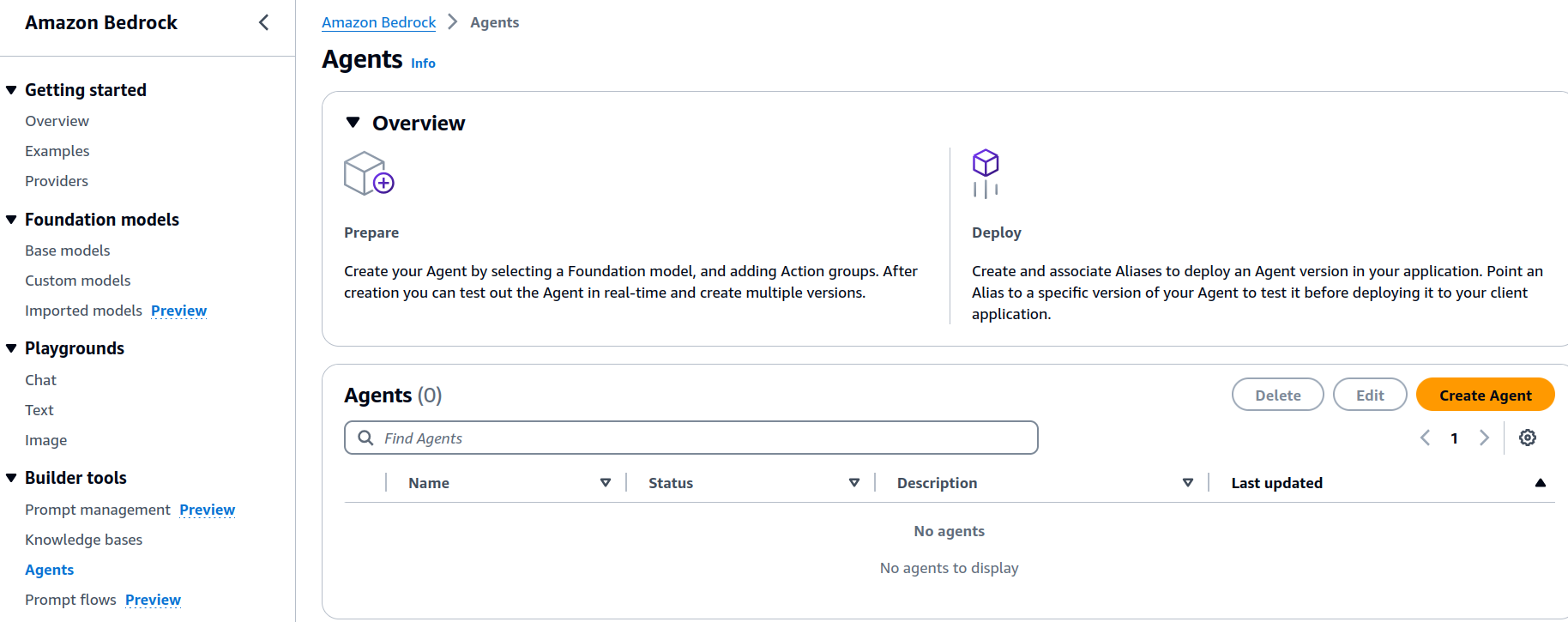
<p>In the Amazon Bedrock console, navigate to the <strong>Builder tools</strong> and <strong>Agents</strong> menu on the left then click the <strong>Create Agent</strong> button.
<img src="/assets/img/bedrock-agent-demo/1-create-agent.png" alt="1-create-agent" />
<em>Bedrock Create Agent console</em></p>

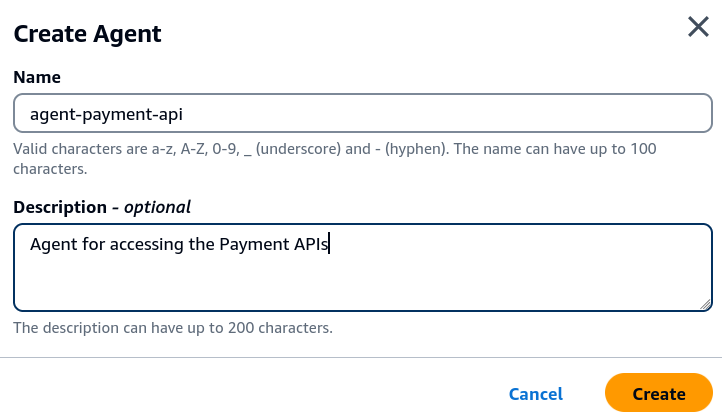
<p>It will prompt you to key in the Agent name and description. The Agent we will create will access the Payment API so we will name it as <code class="language-plaintext highlighter-rouge">agent-payment-api</code>. You can also accept the generated default name for quick prototyping if you just want to test it out.</p>

<p><img src="/assets/img/bedrock-agent-demo/2-agent-name.png" alt="2-agent-name" />
<em>Enter the Agent name and description</em></p>

<p>Next, you will be in the <strong>Agent builder</strong> page where you can put in more details to the Agent like API schema, permissions and prompts. This will be our main page when editing, saving the configuration and testing the Agent. You can always refer back to this page when you get lost in the console which happened to me at first when figuring out how to navigate the UI.</p>

<p>Just below the Agent name is the setting for the service role, choose the default setting which is to create a new service role for this Agent. A service role defines the permissions of what this Agent can do against your other AWS resources.

<img src="/assets/img/bedrock-agent-demo/3-agent-resource-role.png" alt="3-agent-resource-role" />
<em>Create a new service role for the Agent</em></p>

<h2 id="select-the-foundation-model-and-prompt">Select the Foundation Model and Prompt</h2>
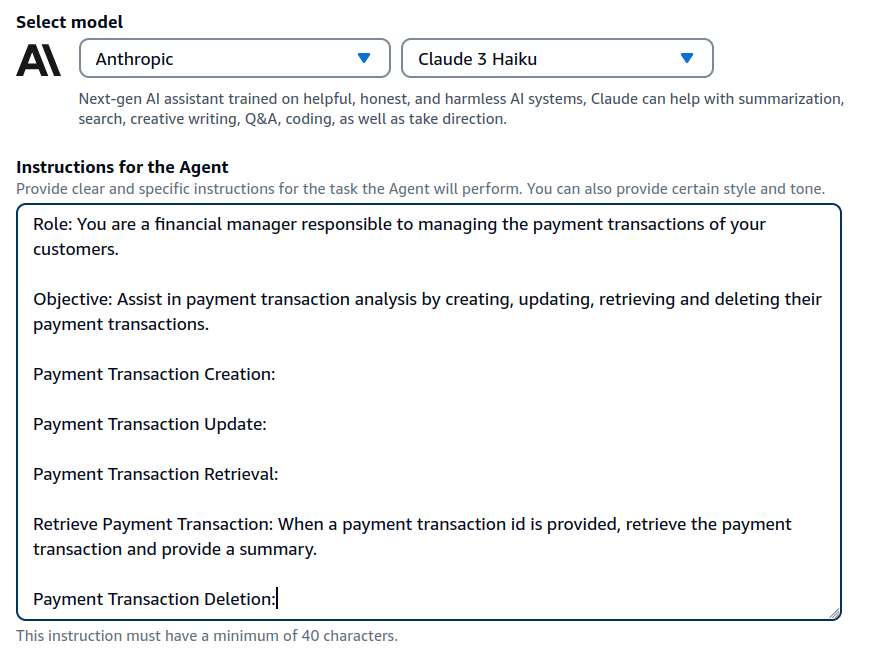
<p>Then select the model. The model you choose will be the model used by the Agent when handling tasks. In our case, we will use the <strong>Anthropic Claude 3 Haiku</strong> model.</p>

<blockquote class="prompt-info">
  <p>Make sure that your AWS account has access to at least one foundation model. You can refer back to the navigation on the left under <strong>Bedrock Configurations - Model access</strong>. Request for access if you don’t have access to any available model.</p>
</blockquote>

<p>Next is probably the most important setting for the Agent which is providing instructions to it. This is essentially prompting the model on what to do to perform its task well. The more specific and clear the instructions we give, the better results we will have. You can experiment on this to achieve a better result. Also look at the specific foundation model documentation you are using on how to optimize the prompt.</p>

<p><img src="/assets/img/bedrock-agent-demo/4-select-model.png" alt="4-select-model" />
<em>Select the foundation model and provide a detailed instruction</em></p>

<p>Let’s try with an instruction that tells the Agent its role, its objective, and guide it on what it needs to do when given a few parameters so it knows how to process them, which API to invoke, and what it needs to do with the response payload. Since our backend API is a Payment API, we will tell the Agent to act like a financial manager that manages payment transactions of customers. We will give it an objective so it knows what will be its output and what are the available actions it can do. Then, we list down the different actions. For simplicity, we only have the retrieval part of the API, so we define it by adding some description on what the Agent needs to do when asked to retrieve a transaction given a transaction ID. Yes, it is quite specific so that we can have a more predictable result. Simply put, we are telling the Agent that if someone asks it to get the details of a payment transaction given its ID, it needs to look for a retrieve or get payment API, invoke it, and summarize the results based on the data it gets from the response.</p>

<p>The following is the full text of the instructions. Again, you can experiment and tweak this prompt to suit your APIs. It all depends on your objectives for creating the Agent in the first place.</p>

<div class="language-plaintext highlighter-rouge"><div class="highlight"><pre class="highlight"><code><table class="rouge-table"><tbody><tr><td class="rouge-gutter gl"><pre class="lineno">1
2
3
4
5
6
7
8
9
10
11
12
13
</pre></td><td class="rouge-code"><pre>Role: You are a financial manager responsible to managing the payment transactions of your customers.

Objective: Assist in payment transaction analysis by creating, updating, retrieving and deleting their payment transactions.

Payment Transaction Creation:

Payment Transaction Update:

Payment Transaction Retrieval:

Retrieve Payment Transaction: When a payment transaction id is provided, retrieve the payment transaction and provide a summary.

Payment Transaction Deletion:
</pre></td></tr></tbody></table></code></pre></div></div>

<h2 id="define-the-api-actions">Define the API actions</h2>
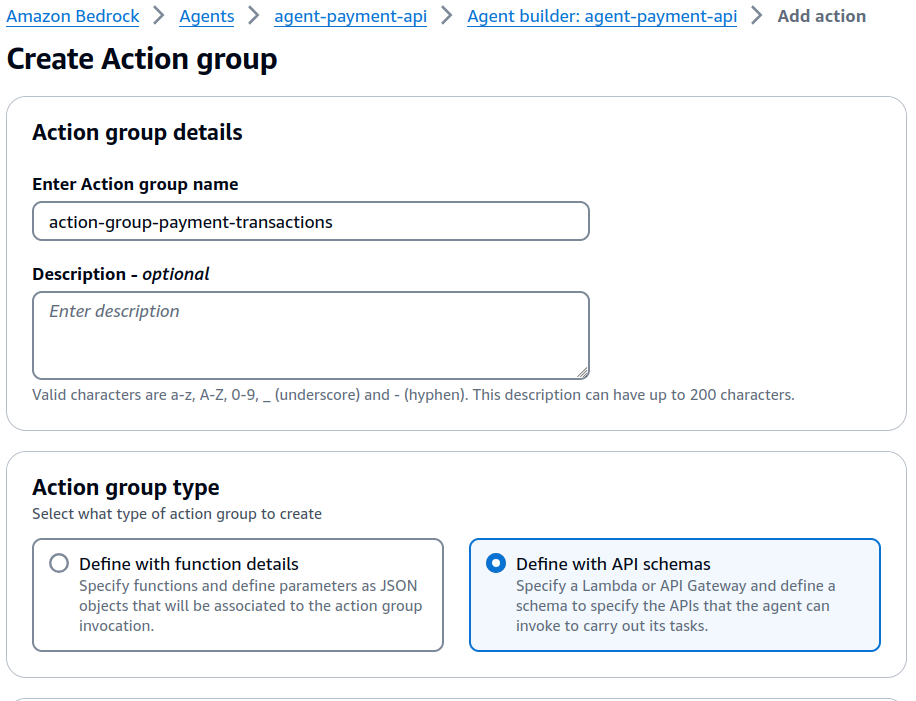
<p>Our next step is to define the actions the Agent can perform. In the <strong>Action groups</strong> section click <strong>Add</strong> to create a new action group. Let’s call it <code class="language-plaintext highlighter-rouge">action-group-payment-transactions</code>.</p>

<p><img src="/assets/img/bedrock-agent-demo/5-create-action-group.png" alt="5-create-action-group" />
<em>Create Action Group</em></p>

<p>In the <strong>Action group type</strong> choose <strong>Define with API Schemas</strong>. With this option, we will specify a Lambda function that hosts our Payment API.</p>

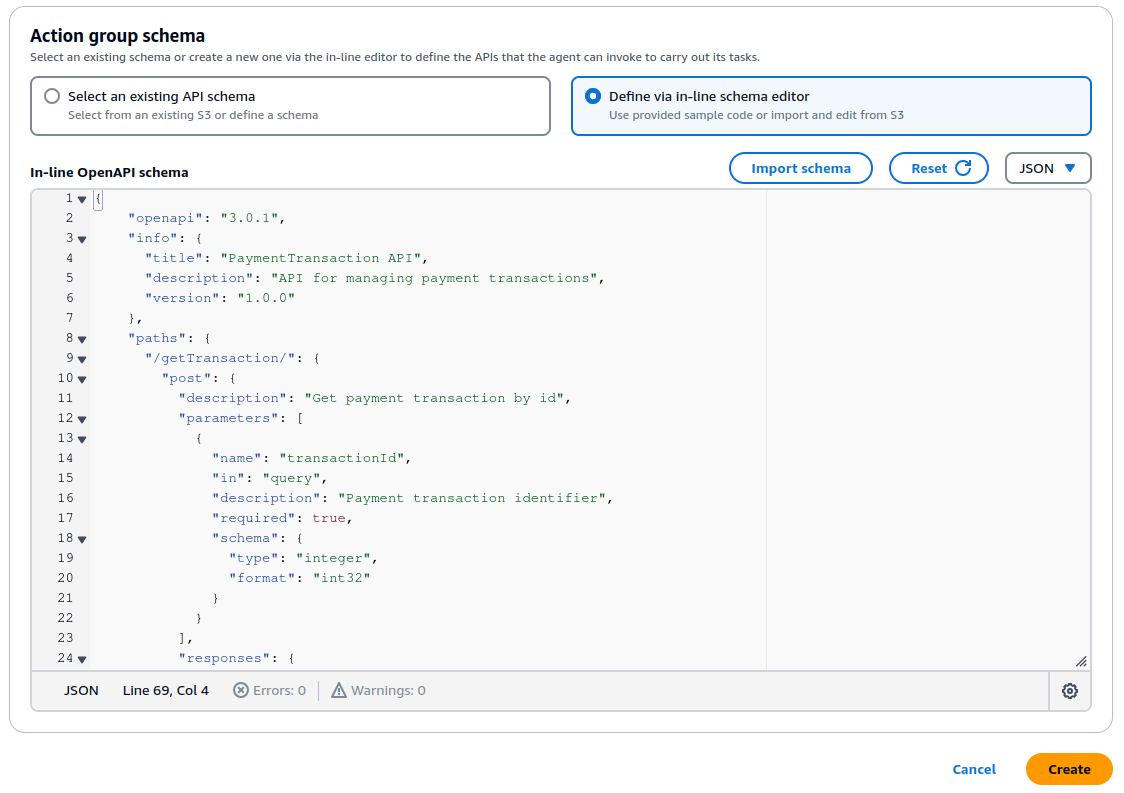
<p>Scroll down to the <strong>Action group schema</strong> section and select <strong>Define via in-line schema editor</strong>. In the text box that follows, paste the OpenAPI schema of our Payment API. The full JSON format can be found in the GitHub source <a href="https://github.com/madrian/bedrock-agent-demo/blob/master/payment-transaction-api-schema.json">here</a>.</p>

<p><img src="/assets/img/bedrock-agent-demo/6-define-api-schema.png" alt="6-define-api-schema" />
<em>Define the API schema using OpenAPI format</em></p>

<p>The point of providing the schema is to give the Agent as much information about the APIs, what paths are available, what are the parameters required, their data types, the response parameters, etc. The foundation model during its orchestration, analyzes the available actions and its corresponding invocations based on the configurations we set here.</p>

<p>If you look at the schema, it tells about the <code class="language-plaintext highlighter-rouge">paths</code> available. To get a payment transaction by ID, the Agent must construct an API call using the path <code class="language-plaintext highlighter-rouge">/getTransaction</code>, method <code class="language-plaintext highlighter-rouge">post</code>, and provide a query parameter <code class="language-plaintext highlighter-rouge">transactionId</code> of type <code class="language-plaintext highlighter-rouge">int</code>. Internally, that’s what the Agent does with the help of the foundation model to figure these things out. It acts like a client invoking your Payment API.</p>

<div class="language-json highlighter-rouge"><div class="highlight"><pre class="highlight"><code><table class="rouge-table"><tbody><tr><td class="rouge-gutter gl"><pre class="lineno">1
2
3
4
5
6
7
8
9
10
11
12
13
14
15
16
</pre></td><td class="rouge-code"><pre><span class="w">    </span><span class="nl">"paths"</span><span class="p">:</span><span class="w"> </span><span class="p">{</span><span class="w">
      </span><span class="nl">"/getTransaction/"</span><span class="p">:</span><span class="w"> </span><span class="p">{</span><span class="w">
        </span><span class="nl">"post"</span><span class="p">:</span><span class="w"> </span><span class="p">{</span><span class="w">
          </span><span class="nl">"description"</span><span class="p">:</span><span class="w"> </span><span class="s2">"Get payment transaction by id"</span><span class="p">,</span><span class="w">
          </span><span class="nl">"parameters"</span><span class="p">:</span><span class="w"> </span><span class="p">[</span><span class="w">
            </span><span class="p">{</span><span class="w">
              </span><span class="nl">"name"</span><span class="p">:</span><span class="w"> </span><span class="s2">"transactionId"</span><span class="p">,</span><span class="w">
              </span><span class="nl">"in"</span><span class="p">:</span><span class="w"> </span><span class="s2">"query"</span><span class="p">,</span><span class="w">
              </span><span class="nl">"description"</span><span class="p">:</span><span class="w"> </span><span class="s2">"Payment transaction identifier"</span><span class="p">,</span><span class="w">
              </span><span class="nl">"required"</span><span class="p">:</span><span class="w"> </span><span class="kc">true</span><span class="p">,</span><span class="w">
              </span><span class="nl">"schema"</span><span class="p">:</span><span class="w"> </span><span class="p">{</span><span class="w">
                </span><span class="nl">"type"</span><span class="p">:</span><span class="w"> </span><span class="s2">"integer"</span><span class="p">,</span><span class="w">
                </span><span class="nl">"format"</span><span class="p">:</span><span class="w"> </span><span class="s2">"int32"</span><span class="w">
              </span><span class="p">}</span><span class="w">
            </span><span class="p">}</span><span class="w">
          </span><span class="p">],</span><span class="w">
</span></pre></td></tr></tbody></table></code></pre></div></div>
<p><em>OpenAPI schema snippet of the get transaction request</em></p>

<div class="language-json highlighter-rouge"><div class="highlight"><pre class="highlight"><code><table class="rouge-table"><tbody><tr><td class="rouge-gutter gl"><pre class="lineno">1
2
3
4
5
6
7
8
9
10
11
12
13
14
15
16
17
18
19
20
21
22
23
24
25
26
27
28
29
30
31
</pre></td><td class="rouge-code"><pre><span class="w">    </span><span class="nl">"components"</span><span class="p">:</span><span class="w"> </span><span class="p">{</span><span class="w">
      </span><span class="nl">"schemas"</span><span class="p">:</span><span class="w"> </span><span class="p">{</span><span class="w">
        </span><span class="nl">"PaymentTransactionData"</span><span class="p">:</span><span class="w"> </span><span class="p">{</span><span class="w">
          </span><span class="nl">"type"</span><span class="p">:</span><span class="w"> </span><span class="s2">"object"</span><span class="p">,</span><span class="w">
          </span><span class="nl">"description"</span><span class="p">:</span><span class="w"> </span><span class="s2">"Single payment transaction data"</span><span class="p">,</span><span class="w">
          </span><span class="nl">"properties"</span><span class="p">:</span><span class="w"> </span><span class="p">{</span><span class="w">
            </span><span class="nl">"transactionId"</span><span class="p">:</span><span class="w"> </span><span class="p">{</span><span class="w">
              </span><span class="nl">"type"</span><span class="p">:</span><span class="w"> </span><span class="s2">"integer"</span><span class="p">,</span><span class="w">
              </span><span class="nl">"description"</span><span class="p">:</span><span class="w"> </span><span class="s2">"Payment transaction identifier"</span><span class="w">
            </span><span class="p">},</span><span class="w">
            </span><span class="nl">"amount"</span><span class="p">:</span><span class="w"> </span><span class="p">{</span><span class="w">
              </span><span class="nl">"type"</span><span class="p">:</span><span class="w"> </span><span class="s2">"number"</span><span class="p">,</span><span class="w">
              </span><span class="nl">"description"</span><span class="p">:</span><span class="w"> </span><span class="s2">"Price of the payment transaction"</span><span class="w">
            </span><span class="p">},</span><span class="w">
            </span><span class="nl">"product"</span><span class="p">:</span><span class="w"> </span><span class="p">{</span><span class="w">
              </span><span class="nl">"type"</span><span class="p">:</span><span class="w"> </span><span class="s2">"string"</span><span class="p">,</span><span class="w">
              </span><span class="nl">"description"</span><span class="p">:</span><span class="w"> </span><span class="s2">"Description of the product purchased for this payment transaction"</span><span class="w">
            </span><span class="p">},</span><span class="w">
            </span><span class="nl">"quantity"</span><span class="p">:</span><span class="w"> </span><span class="p">{</span><span class="w">
              </span><span class="nl">"type"</span><span class="p">:</span><span class="w"> </span><span class="s2">"number"</span><span class="p">,</span><span class="w">
              </span><span class="nl">"description"</span><span class="p">:</span><span class="w"> </span><span class="s2">"Number of items purchased in this payment transaction"</span><span class="w">
            </span><span class="p">},</span><span class="w">
            </span><span class="nl">"date"</span><span class="p">:</span><span class="w"> </span><span class="p">{</span><span class="w">
              </span><span class="nl">"type"</span><span class="p">:</span><span class="w"> </span><span class="s2">"string"</span><span class="p">,</span><span class="w">
              </span><span class="nl">"description"</span><span class="p">:</span><span class="w"> </span><span class="s2">"Date of this payment transaction"</span><span class="w">
            </span><span class="p">}</span><span class="w">
          </span><span class="p">}</span><span class="w">
        </span><span class="p">}</span><span class="w">
      </span><span class="p">}</span><span class="w">
    </span><span class="p">}</span><span class="w">
  </span><span class="p">}</span><span class="w">
</span></pre></td></tr></tbody></table></code></pre></div></div>
<p><em>OpenAPI schema snippet of the Payment Transaction Data</em></p>

<p>In terms of response, it receives a <code class="language-plaintext highlighter-rouge">PaymentTransactionData</code> payload with fields <code class="language-plaintext highlighter-rouge">transactionId</code>, <code class="language-plaintext highlighter-rouge">amount</code>, <code class="language-plaintext highlighter-rouge">product</code>, <code class="language-plaintext highlighter-rouge">quantity</code> and <code class="language-plaintext highlighter-rouge">date</code> and their respective descriptions. By making the schema very descriptive, it helps the Agent understand your data and creates a meaningful response.</p>

<h2 id="build-the-lambda-function-api">Build the Lambda function API</h2>
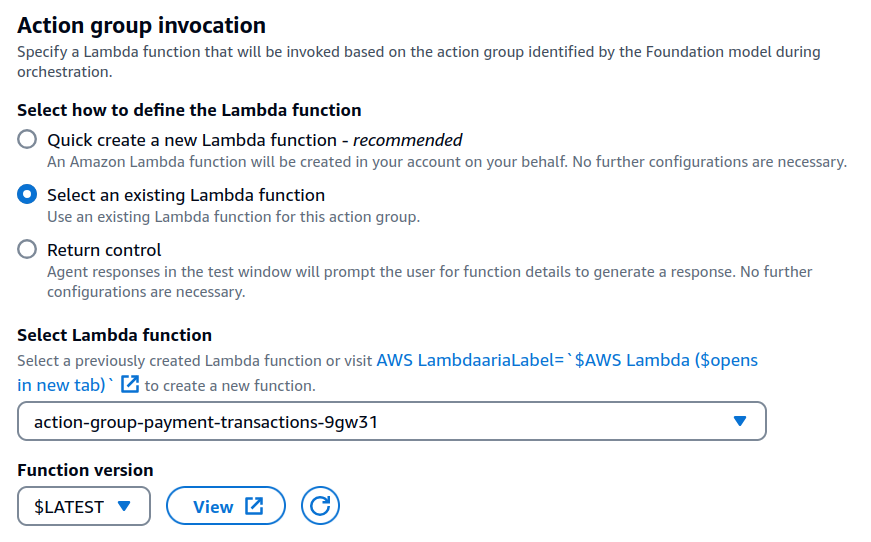
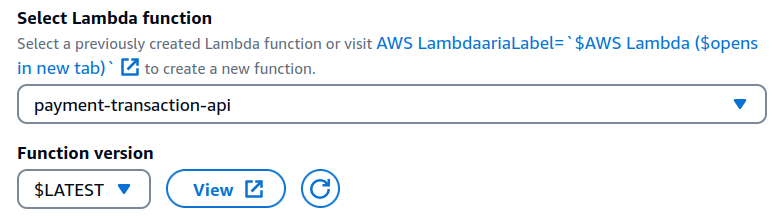
<p>The next step is quite straightforward which is to create the API that accesses the dynamic data.  In the <strong>Action group invocation</strong>, choose the <strong>Select an existing Lambda function</strong>.</p>

<p><img src="/assets/img/bedrock-agent-demo/7-select-lambda.png" alt="7-select-lambda" />
<em>Select the Lambda function to invoke for this action group</em></p>

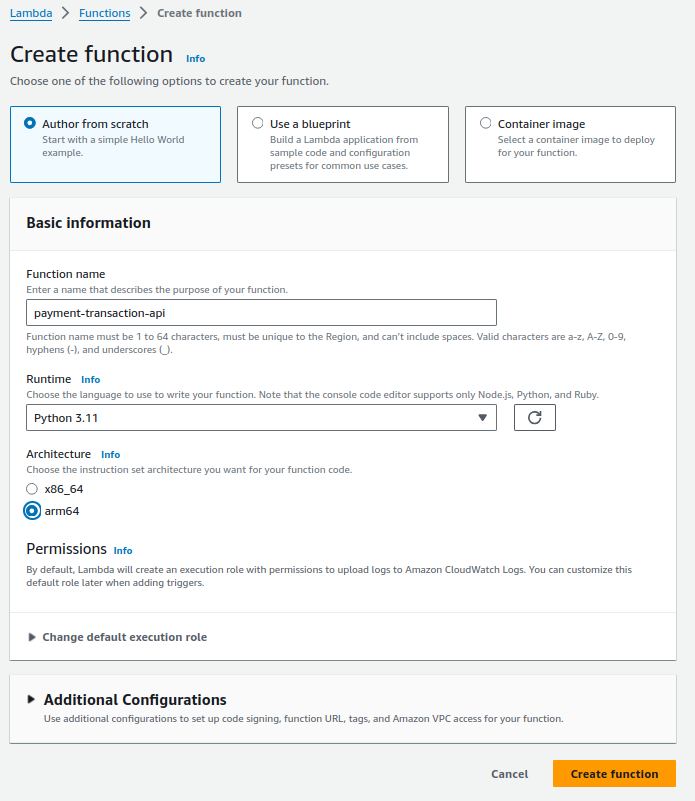
<p>We don’t have the Lambda function yet so open the Lambda console in a new tab. In the Lambda console, click <strong>Create function</strong>.</p>

<p><img src="/assets/img/bedrock-agent-demo/8-create-lambda-function.png" alt="8-create-lambda-function" />
<em>Create the Lambda function hosting the Payment API</em></p>

<p>We will create the function from scratch. Use the name <code class="language-plaintext highlighter-rouge">payment-transaction-api</code>. Select <code class="language-plaintext highlighter-rouge">Python 3.11</code> as the runtime and <code class="language-plaintext highlighter-rouge">arm64</code> as the architecture. Click <strong>Create function</strong>.</p>

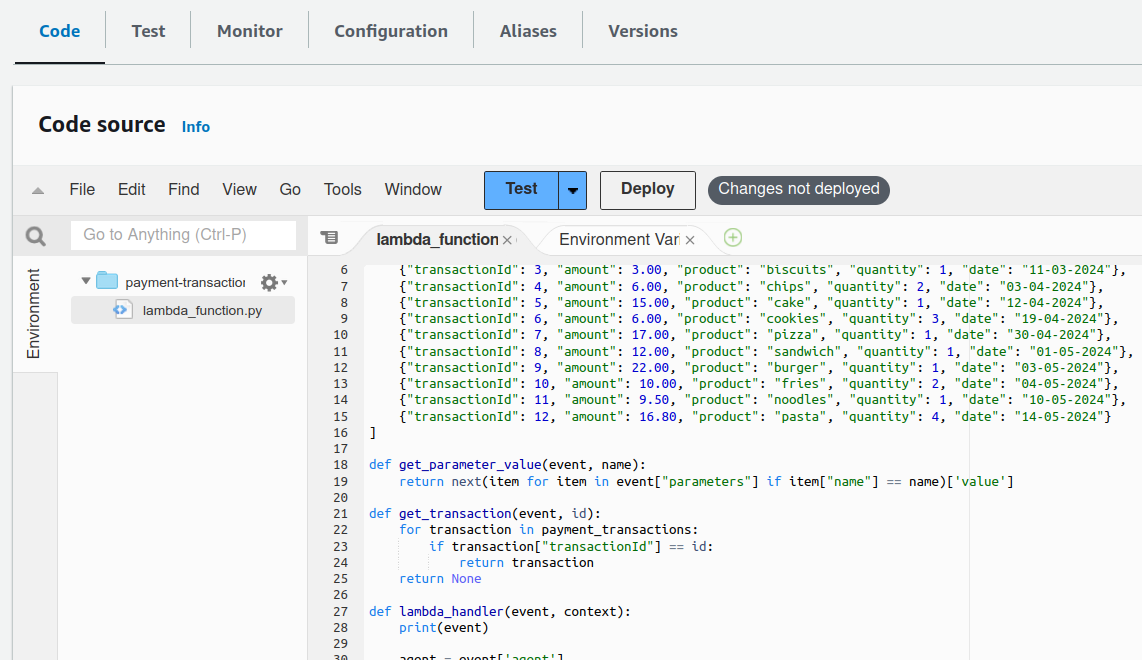
<p>In the code section, paste the <a href="https://github.com/madrian/bedrock-agent-demo/blob/master/lambda-agent.py">full source code</a> of the Lambda handler in the <code class="language-plaintext highlighter-rouge">lambda_function.py</code> file. Then click <code class="language-plaintext highlighter-rouge">Deploy</code>.</p>

<p><img src="/assets/img/bedrock-agent-demo/9-lambda-code.png" alt="9-lambda-code" />
<em>Paste the code of the Payment API</em></p>

<p>We will not be using a database source to retrieve the dynamic data. The data we will use for testing is hard coded in the Lambda function itself.</p>

<div class="language-python highlighter-rouge"><div class="highlight"><pre class="highlight"><code><table class="rouge-table"><tbody><tr><td class="rouge-gutter gl"><pre class="lineno">1
2
3
4
5
6
7
8
9
10
11
12
13
14
</pre></td><td class="rouge-code"><pre><span class="n">payment_transactions</span> <span class="o">=</span> <span class="p">[</span>
    <span class="p">{</span><span class="sh">"</span><span class="s">transactionId</span><span class="sh">"</span><span class="p">:</span> <span class="mi">1</span><span class="p">,</span> <span class="sh">"</span><span class="s">amount</span><span class="sh">"</span><span class="p">:</span> <span class="mf">2.00</span><span class="p">,</span> <span class="sh">"</span><span class="s">product</span><span class="sh">"</span><span class="p">:</span> <span class="sh">"</span><span class="s">coffee</span><span class="sh">"</span><span class="p">,</span> <span class="sh">"</span><span class="s">quantity</span><span class="sh">"</span><span class="p">:</span> <span class="mi">1</span><span class="p">,</span> <span class="sh">"</span><span class="s">date</span><span class="sh">"</span><span class="p">:</span> <span class="sh">"</span><span class="s">10-03-2024</span><span class="sh">"</span><span class="p">},</span>
    <span class="p">{</span><span class="sh">"</span><span class="s">transactionId</span><span class="sh">"</span><span class="p">:</span> <span class="mi">2</span><span class="p">,</span> <span class="sh">"</span><span class="s">amount</span><span class="sh">"</span><span class="p">:</span> <span class="mf">1.50</span><span class="p">,</span> <span class="sh">"</span><span class="s">product</span><span class="sh">"</span><span class="p">:</span> <span class="sh">"</span><span class="s">tea</span><span class="sh">"</span><span class="p">,</span> <span class="sh">"</span><span class="s">quantity</span><span class="sh">"</span><span class="p">:</span> <span class="mi">3</span><span class="p">,</span> <span class="sh">"</span><span class="s">date</span><span class="sh">"</span><span class="p">:</span> <span class="sh">"</span><span class="s">11-03-2024</span><span class="sh">"</span><span class="p">},</span>
    <span class="p">{</span><span class="sh">"</span><span class="s">transactionId</span><span class="sh">"</span><span class="p">:</span> <span class="mi">3</span><span class="p">,</span> <span class="sh">"</span><span class="s">amount</span><span class="sh">"</span><span class="p">:</span> <span class="mf">3.00</span><span class="p">,</span> <span class="sh">"</span><span class="s">product</span><span class="sh">"</span><span class="p">:</span> <span class="sh">"</span><span class="s">biscuits</span><span class="sh">"</span><span class="p">,</span> <span class="sh">"</span><span class="s">quantity</span><span class="sh">"</span><span class="p">:</span> <span class="mi">1</span><span class="p">,</span> <span class="sh">"</span><span class="s">date</span><span class="sh">"</span><span class="p">:</span> <span class="sh">"</span><span class="s">11-03-2024</span><span class="sh">"</span><span class="p">},</span>
    <span class="p">{</span><span class="sh">"</span><span class="s">transactionId</span><span class="sh">"</span><span class="p">:</span> <span class="mi">4</span><span class="p">,</span> <span class="sh">"</span><span class="s">amount</span><span class="sh">"</span><span class="p">:</span> <span class="mf">6.00</span><span class="p">,</span> <span class="sh">"</span><span class="s">product</span><span class="sh">"</span><span class="p">:</span> <span class="sh">"</span><span class="s">chips</span><span class="sh">"</span><span class="p">,</span> <span class="sh">"</span><span class="s">quantity</span><span class="sh">"</span><span class="p">:</span> <span class="mi">2</span><span class="p">,</span> <span class="sh">"</span><span class="s">date</span><span class="sh">"</span><span class="p">:</span> <span class="sh">"</span><span class="s">03-04-2024</span><span class="sh">"</span><span class="p">},</span>
    <span class="p">{</span><span class="sh">"</span><span class="s">transactionId</span><span class="sh">"</span><span class="p">:</span> <span class="mi">5</span><span class="p">,</span> <span class="sh">"</span><span class="s">amount</span><span class="sh">"</span><span class="p">:</span> <span class="mf">15.00</span><span class="p">,</span> <span class="sh">"</span><span class="s">product</span><span class="sh">"</span><span class="p">:</span> <span class="sh">"</span><span class="s">cake</span><span class="sh">"</span><span class="p">,</span> <span class="sh">"</span><span class="s">quantity</span><span class="sh">"</span><span class="p">:</span> <span class="mi">1</span><span class="p">,</span> <span class="sh">"</span><span class="s">date</span><span class="sh">"</span><span class="p">:</span> <span class="sh">"</span><span class="s">12-04-2024</span><span class="sh">"</span><span class="p">},</span>
    <span class="p">{</span><span class="sh">"</span><span class="s">transactionId</span><span class="sh">"</span><span class="p">:</span> <span class="mi">6</span><span class="p">,</span> <span class="sh">"</span><span class="s">amount</span><span class="sh">"</span><span class="p">:</span> <span class="mf">6.00</span><span class="p">,</span> <span class="sh">"</span><span class="s">product</span><span class="sh">"</span><span class="p">:</span> <span class="sh">"</span><span class="s">cookies</span><span class="sh">"</span><span class="p">,</span> <span class="sh">"</span><span class="s">quantity</span><span class="sh">"</span><span class="p">:</span> <span class="mi">3</span><span class="p">,</span> <span class="sh">"</span><span class="s">date</span><span class="sh">"</span><span class="p">:</span> <span class="sh">"</span><span class="s">19-04-2024</span><span class="sh">"</span><span class="p">},</span>
    <span class="p">{</span><span class="sh">"</span><span class="s">transactionId</span><span class="sh">"</span><span class="p">:</span> <span class="mi">7</span><span class="p">,</span> <span class="sh">"</span><span class="s">amount</span><span class="sh">"</span><span class="p">:</span> <span class="mf">17.00</span><span class="p">,</span> <span class="sh">"</span><span class="s">product</span><span class="sh">"</span><span class="p">:</span> <span class="sh">"</span><span class="s">pizza</span><span class="sh">"</span><span class="p">,</span> <span class="sh">"</span><span class="s">quantity</span><span class="sh">"</span><span class="p">:</span> <span class="mi">1</span><span class="p">,</span> <span class="sh">"</span><span class="s">date</span><span class="sh">"</span><span class="p">:</span> <span class="sh">"</span><span class="s">30-04-2024</span><span class="sh">"</span><span class="p">},</span>
    <span class="p">{</span><span class="sh">"</span><span class="s">transactionId</span><span class="sh">"</span><span class="p">:</span> <span class="mi">8</span><span class="p">,</span> <span class="sh">"</span><span class="s">amount</span><span class="sh">"</span><span class="p">:</span> <span class="mf">12.00</span><span class="p">,</span> <span class="sh">"</span><span class="s">product</span><span class="sh">"</span><span class="p">:</span> <span class="sh">"</span><span class="s">sandwich</span><span class="sh">"</span><span class="p">,</span> <span class="sh">"</span><span class="s">quantity</span><span class="sh">"</span><span class="p">:</span> <span class="mi">1</span><span class="p">,</span> <span class="sh">"</span><span class="s">date</span><span class="sh">"</span><span class="p">:</span> <span class="sh">"</span><span class="s">01-05-2024</span><span class="sh">"</span><span class="p">},</span>
    <span class="p">{</span><span class="sh">"</span><span class="s">transactionId</span><span class="sh">"</span><span class="p">:</span> <span class="mi">9</span><span class="p">,</span> <span class="sh">"</span><span class="s">amount</span><span class="sh">"</span><span class="p">:</span> <span class="mf">22.00</span><span class="p">,</span> <span class="sh">"</span><span class="s">product</span><span class="sh">"</span><span class="p">:</span> <span class="sh">"</span><span class="s">burger</span><span class="sh">"</span><span class="p">,</span> <span class="sh">"</span><span class="s">quantity</span><span class="sh">"</span><span class="p">:</span> <span class="mi">1</span><span class="p">,</span> <span class="sh">"</span><span class="s">date</span><span class="sh">"</span><span class="p">:</span> <span class="sh">"</span><span class="s">03-05-2024</span><span class="sh">"</span><span class="p">},</span>
    <span class="p">{</span><span class="sh">"</span><span class="s">transactionId</span><span class="sh">"</span><span class="p">:</span> <span class="mi">10</span><span class="p">,</span> <span class="sh">"</span><span class="s">amount</span><span class="sh">"</span><span class="p">:</span> <span class="mf">10.00</span><span class="p">,</span> <span class="sh">"</span><span class="s">product</span><span class="sh">"</span><span class="p">:</span> <span class="sh">"</span><span class="s">fries</span><span class="sh">"</span><span class="p">,</span> <span class="sh">"</span><span class="s">quantity</span><span class="sh">"</span><span class="p">:</span> <span class="mi">2</span><span class="p">,</span> <span class="sh">"</span><span class="s">date</span><span class="sh">"</span><span class="p">:</span> <span class="sh">"</span><span class="s">04-05-2024</span><span class="sh">"</span><span class="p">},</span>
    <span class="p">{</span><span class="sh">"</span><span class="s">transactionId</span><span class="sh">"</span><span class="p">:</span> <span class="mi">11</span><span class="p">,</span> <span class="sh">"</span><span class="s">amount</span><span class="sh">"</span><span class="p">:</span> <span class="mf">9.50</span><span class="p">,</span> <span class="sh">"</span><span class="s">product</span><span class="sh">"</span><span class="p">:</span> <span class="sh">"</span><span class="s">noodles</span><span class="sh">"</span><span class="p">,</span> <span class="sh">"</span><span class="s">quantity</span><span class="sh">"</span><span class="p">:</span> <span class="mi">1</span><span class="p">,</span> <span class="sh">"</span><span class="s">date</span><span class="sh">"</span><span class="p">:</span> <span class="sh">"</span><span class="s">10-05-2024</span><span class="sh">"</span><span class="p">},</span>
    <span class="p">{</span><span class="sh">"</span><span class="s">transactionId</span><span class="sh">"</span><span class="p">:</span> <span class="mi">12</span><span class="p">,</span> <span class="sh">"</span><span class="s">amount</span><span class="sh">"</span><span class="p">:</span> <span class="mf">16.80</span><span class="p">,</span> <span class="sh">"</span><span class="s">product</span><span class="sh">"</span><span class="p">:</span> <span class="sh">"</span><span class="s">pasta</span><span class="sh">"</span><span class="p">,</span> <span class="sh">"</span><span class="s">quantity</span><span class="sh">"</span><span class="p">:</span> <span class="mi">4</span><span class="p">,</span> <span class="sh">"</span><span class="s">date</span><span class="sh">"</span><span class="p">:</span> <span class="sh">"</span><span class="s">14-05-2024</span><span class="sh">"</span><span class="p">}</span>
<span class="p">]</span>
</pre></td></tr></tbody></table></code></pre></div></div>
<p><em>Test data of payment transactions</em></p>

<blockquote class="prompt-tip">
  <p>Fun fact: I also used GenAI to generate these dummy data with the help of <a href="https://docs.aws.amazon.com/codewhisperer/latest/userguide/what-is-cwspr.html">Amazon CodeWhisperer</a> enabled in my IDE.</p>
</blockquote>

<p>Let’s walk through the Python code. It’s pretty much a standard Python Lambda function code with the <code class="language-plaintext highlighter-rouge">lambda_handler</code> as the entry point. However, your handler must be able to follow the request and response payload format the Bedrock Agent will send and receive, respectively. There’s an input event from Amazon Bedrock that serves as the Lambda input. You can find more details <a href="https://docs.aws.amazon.com/bedrock/latest/userguide/agents-lambda.html">here</a>. In our Payment API, the key parameters we need are the <code class="language-plaintext highlighter-rouge">apiPath</code> to determine which operation to process, and the <code class="language-plaintext highlighter-rouge">transactionId</code> in the <code class="language-plaintext highlighter-rouge">parameters</code> array. Then in constructing the response include the body in the <code class="language-plaintext highlighter-rouge">responseBody</code> field. Our example is simple so we only need these, but you can also explore the other parameters like contextual attributes to pass across sessions and prompts such as <code class="language-plaintext highlighter-rouge">sessionAttributes</code> and <code class="language-plaintext highlighter-rouge">promptSessionAttributes</code>.</p>

<blockquote class="prompt-warning">
  <p>Before you proceed back to the Bedrock console, make sure you have deployed the Lambda function. Click <strong>Deploy</strong> in the code tab.</p>
</blockquote>

<blockquote class="prompt-info">
  <p>Remember the full source code is available in GitHub <a href="https://github.com/madrian/bedrock-agent-demo/">here</a>.</p>
</blockquote>

<p>Now that we have created and deployed the Lambda function, go back to the Bedrock console. In the <strong>Action group invocation</strong> section select the Lambda function <code class="language-plaintext highlighter-rouge">payment-transaction-api</code>. If you can’t find it, click the refresh icon to refresh the list.</p>

<p><img src="/assets/img/bedrock-agent-demo/10-select-lambda.png" alt="10-select-lambda" />
<em>Select the payment-transaction-api function</em></p>

<p>Finally, at the bottom of the <strong>Action group details</strong> page, click <strong>Save and exit</strong>. You will return to the <strong>Agent builder</strong> page, click <strong>Save</strong> there as well. A prompt will tell you to prepare the Agent so that its details are up to date.</p>

<p><img src="/assets/img/bedrock-agent-demo/11-prepare-prompt.png" alt="11-prepare-prompt" />
<em>Prompt to prepare the Agent to keep it up to date before testing</em></p>

<p>On the right there’s a <strong>Test agent</strong> pane, click the <strong>Prepare</strong> button to update the Agent.</p>

<p><img src="/assets/img/bedrock-agent-demo/12-prepare-agent.png" alt="12-prepare-agent" />
<em>Prepare the Agent in the Test console</em></p>

<h2 id="test-the-agent">Test the Agent</h2>
<p>In the Test console, try asking the agent with a prompt like “Give me a summary of the payment details in transaction id 3.”.</p>

<p><img src="/assets/img/bedrock-agent-demo/13-test-agent-error.png" alt="13-test-agent-error" />
<em>Test Agent with permission error</em></p>

<p>You will see an error that says <em>Access denied when invoking the Lambda function…</em>. Right, we didn’t give permission for the Agent to invoke our Lambda function.</p>

<h2 id="setup-the-agent-permissions-to-invoke-lambda">Setup the Agent permissions to invoke Lambda</h2>
<p>One of the usual errors you will face when integrating different services in AWS is access permissions. Here we are integrating our Lambda function with the Bedrock Agent. One way to do this is to update the Lambda function’s <strong>Resource Policy</strong> to allow the Agent access to it. You can also refer to the documentation <a href="https://docs.aws.amazon.com/bedrock/latest/userguide/agents-permissions.html#agents-permissions-lambda">here</a>.</p>

<p>Go back to the Lambda console and edit the <code class="language-plaintext highlighter-rouge">payment-transaction-api</code> function. Go to the <strong>Configurations</strong> tab, click <strong>Permissions</strong> on the left menu.</p>

<p><img src="/assets/img/bedrock-agent-demo/14-lambda-config-permissions.png" alt="14-lambda-config-permissions" />
<em>Lambda Permissions under the Configurations tab</em></p>

<p>Find the <strong>Resource-based policy statements</strong> section and click <strong>Add permissions</strong>.
<img src="/assets/img/bedrock-agent-demo/15-resource-based-add-permission.png" alt="15-resource-based-add-permission" />
<em>Add a Resource Based permission in Lambda</em></p>

<p>Add a new policy in the Lambda function to allow the service <code class="language-plaintext highlighter-rouge">bedrock.amazonaws.com</code> as the <strong>Principal</strong> and the specific Bedrock Agent as the <strong>Source Arn</strong>. You need to grab the ARN of the Agent we just created. Go back to the Bedrock Console, under <strong>Agents</strong> open the <code class="language-plaintext highlighter-rouge">agent-payment-api</code> and in the <strong>Agent Overview</strong> section you will see the <strong>Agent ARN</strong>. Its format is something like <code class="language-plaintext highlighter-rouge">arn:aws:bedrock:[region]:[accountId]:agent/[agent-id]</code>. Then in the <strong>Action</strong> field choose <code class="language-plaintext highlighter-rouge">lambda:InvokeFunction</code>. Click <strong>Save</strong>.</p>

<p><img src="/assets/img/bedrock-agent-demo/16-lambda-edit-policy.png" alt="16-lambda-edit-policy" />
<em>Edit the Lambda policy to allow the Bedrock Agent</em></p>

<h2 id="test-the-agent-again-with-the-right-permissions">Test the Agent again with the right permissions</h2>
<p>So let’s test again the Agent in the Bedrock Console and this time it has the proper permissions to access the Lambda function.</p>

<p>Let’s try asking in the prompt.</p>

<blockquote>
  <p>Give me a summary of the payment details in transaction id 3.</p>
</blockquote>

<p><img src="/assets/img/bedrock-agent-demo/17-test-prompt-1.png" alt="17-test-prompt-1" />
<em>Test Prompt 1 - Payment details of Transaction Id 3</em></p>

<p>Refer back to our test data to verify. Looks like it was able to retrieve one biscuit at $3 which is the right information for the transaction ID 3.</p>

<p>This time let’s try asking just for the product purchased.</p>

<blockquote>
  <p>What product was purchased in transaction id 10?</p>
</blockquote>

<p><img src="/assets/img/bedrock-agent-demo/18-test-prompt-2.png" alt="18-test-prompt-2" />
<em>Test Prompt 2 - What product was purchased in Transaction Id 10</em></p>

<p>Fries is correct.</p>

<p>How about asking for multiple transactions?</p>

<blockquote>
  <p>List the products purchased for transaction ids 1, 2 and 3?</p>
</blockquote>

<p><img src="/assets/img/bedrock-agent-demo/19-test-prompt-3.png" alt="19-test-prompt-3" />
<em>Test Prompt 3 - List products purchased for transaction IDs 1, 2, and 3</em></p>

<p>Great! It was able to invoke multiple times the API.</p>

<p>If you notice there’s a <strong>Show trace</strong> option in the console. You can click that to see the flow of orchestration of the Agent. What payload it uses to invoke the Lambda function, how many times it invokes it, etc. It is also useful when troubleshooting.</p>

<p><img src="/assets/img/bedrock-agent-demo/20-test-tracing.png" alt="20-test-tracing" />
<em>Show trace to see the steps of the Agent orchestration</em></p>

<h2 id="pricing">Pricing</h2>
<p>In terms of pricing, the Bedrock Agent itself does not incur additional cost. You are only charged for the models used which in our case is the Claude Haiku 3.</p>

<blockquote class="prompt-info">
  <p><em>When using Amazon Bedrock Agents and Amazon Bedrock Knowledge Bases, you are only charged for the models and the vector databases you use with these capabilities.</em></p>
</blockquote>

<p>Refer also to the <a href="https://aws.amazon.com/bedrock/pricing/">Bedrock Pricing</a> and the <a href="https://aws.amazon.com/lambda/pricing/">Lambda Pricing</a>.</p>

<h2 id="clean-up">Clean up</h2>
<p>Make sure to clean up the resources to avoid further costs. Delete the Lambda function <code class="language-plaintext highlighter-rouge">payment-transaction-api</code>. Then delete the Agent <code class="language-plaintext highlighter-rouge">agent-payment-api</code>.</p>

<h2 id="next-steps">Next steps</h2>
<p>In this demo we only tried one operation which is retrieval of dynamic data. You can try to expand this example and add the other API operations such as create, delete and update of the payment transactions. Make sure to define them well in the schema including the required parameters so the Agent will know which operation to choose during its orchestration of prompts from the user. You can also try being creative in the prompts and see how the Agent handles the API invocation.</p>

<h2 id="summary">Summary</h2>
<p>In using Bedrock Agents, we can enrich our GenAI applications with dynamic content in real-time that can only be accessed programmatically through APIs. Agents can be easily created in the console by providing clear and specific instructions and a defined API schema to point it to the right Lambda functions. Also make sure that the right permissions are created to make the integration successful. With the Lambda function interaction with Bedrock through the Bedrock Agent, our AI assistant can have a wide range of possibilities. Imagine executing other external APIs, integrating with other systems, and letting the Agent do multiple stages of actions. Your foundation model can now interact with your APIs and dynamic data through these agents and make your GenAI applications do tasks for you.</p>]]></content><author><name></name></author><category term="aws" /><category term="aws" /><category term="genai" /><category term="bedrock" /><category term="agent" /><category term="api" /><summary type="html"><![CDATA[Here's an example of how an Amazon Bedrock Agent can help you manage and access your dynamic data via APIs and integrate them in your GenAI workloads.]]></summary></entry><entry><title type="html">Build an EKS Private Cluster in Isolated Subnets with CDK</title><link href="https://eidorian.com/posts/eks-private-cluster/" rel="alternate" type="text/html" title="Build an EKS Private Cluster in Isolated Subnets with CDK" /><published>2024-09-13T00:00:00+08:00</published><updated>2024-09-15T22:19:32+08:00</updated><id>https://eidorian.com/posts/eks-private-cluster</id><content type="html" xml:base="https://eidorian.com/posts/eks-private-cluster/"><![CDATA[<h2 id="challenges">Challenges</h2>
<p>A common requirement of customers especially those in highly regulated industries like banks or healthcare when building their application in the cloud is to deploy it in an isolated environment or no internet access. This is to add extra protection to their workload and prevent its data from leaking out. In AWS, this is done by deploying in isolated subnets that have no Internet Gateways attached to the VPC or no proxies that connect to the internet. If your workload needs access to the AWS services you will then need to add the respective VPC Endpoints or <a href="https://aws.amazon.com/privatelink/">AWS PrivateLink</a>.</p>

<p>Adding the AWS PrivateLink is all good if you know what service endpoints you need to add but if an AWS service, for example <a href="https://aws.amazon.com/eks/">Amazon EKS</a> requires dependencies on other services that you are not aware of, then access to those services will be blocked until you add their VPC endpoints thus causing a cluster creation to fail.</p>

<p>Another obstacle is that when you use an IaC like the <a href="https://aws.amazon.com/cdk/">AWS Cloud Development Kit</a> or CDK to build your infrastructure, its <a href="https://docs.aws.amazon.com/cdk/v2/guide/constructs.html">Constructs</a> sometimes abstract the underlying implementations and you are not aware of what other AWS services they use. In this post, I will list down the services that need VPC endpoints when creating an EKS private cluster in isolated subnets using AWS CDK.</p>

<h2 id="architecture-overview">Architecture Overview</h2>
<p><img src="/assets/img/aws/eks-private-cluster-diagram.png" alt="architecture-eks-private-cluster" />
<em>Architecture diagram of a private Kubernetes cluster in EKS on isolated subnets with the required VPC endpoints</em></p>
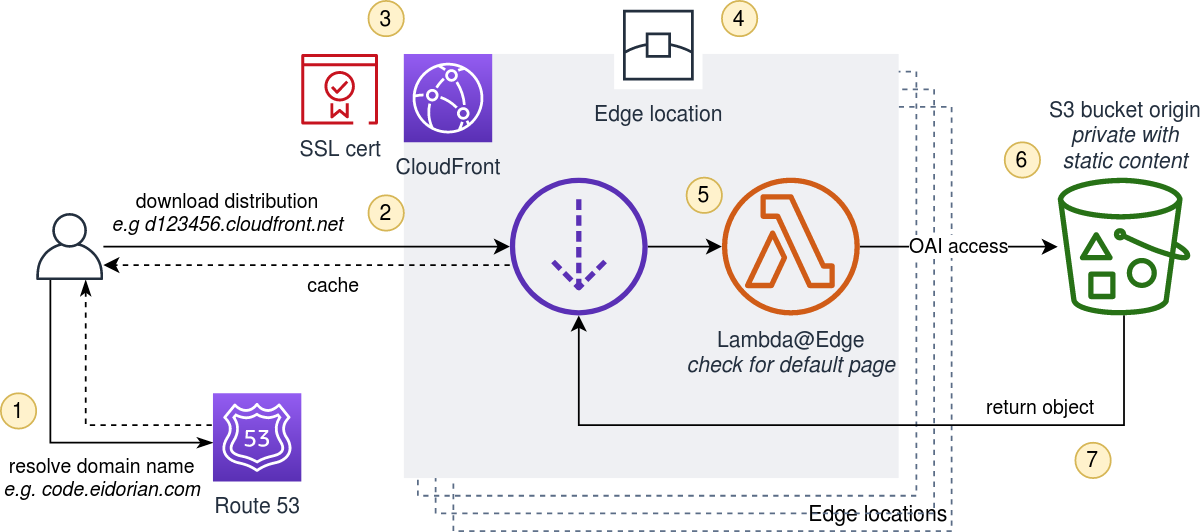
<h2 id="eks-private-cluster-creation">EKS Private Cluster Creation</h2>
<p>An EKS cluster is a Kubernetes cluster managed by AWS. When you use CDK to create the cluster, you can use constructs such as <code class="language-plaintext highlighter-rouge">Cluster</code> which is part of the package <code class="language-plaintext highlighter-rouge">software.amazon.awscdk.services.eks</code> in the <a href="https://docs.aws.amazon.com/cdk/api/v2/java/software/amazon/awscdk/services/eks/package-summary.html#amazon-eks-construct-library">Amazon EKS Construct Library in Java</a>. Other languages are also supported, refer to the CDK documentation. To build the cluster, you call the class method <code class="language-plaintext highlighter-rouge">Cluster.Builder.create().</code> followed by a bunch of configuration methods. Here’s an example.</p>

<div class="language-java highlighter-rouge"><div class="highlight"><pre class="highlight"><code><table class="rouge-table"><tbody><tr><td class="rouge-gutter gl"><pre class="lineno">1
2
3
4
5
6
7
8
9
10
11
12
13
14
15
16
17
18
19
</pre></td><td class="rouge-code"><pre><span class="kd">private</span> <span class="kt">void</span> <span class="nf">createEksCluster</span><span class="o">(</span><span class="nc">Role</span> <span class="n">clusterAdmin</span><span class="o">)</span> <span class="o">{</span>
    <span class="k">this</span><span class="o">.</span><span class="na">cluster</span> <span class="o">=</span>
        <span class="nc">Cluster</span><span class="o">.</span><span class="na">Builder</span><span class="o">.</span><span class="na">create</span><span class="o">(</span><span class="k">this</span><span class="o">,</span> <span class="s">"eks"</span><span class="o">)</span>
            <span class="o">.</span><span class="na">vpc</span><span class="o">(</span><span class="n">vpc</span><span class="o">)</span>
            <span class="o">.</span><span class="na">version</span><span class="o">(</span><span class="nc">KubernetesVersion</span><span class="o">.</span><span class="na">V1_28</span><span class="o">)</span>
            <span class="o">.</span><span class="na">vpcSubnets</span><span class="o">(</span>
                <span class="nc">List</span><span class="o">.</span><span class="na">of</span><span class="o">(</span><span class="nc">SubnetSelection</span><span class="o">.</span><span class="na">builder</span><span class="o">().</span><span class="na">subnetType</span><span class="o">(</span><span class="nc">SubnetType</span><span class="o">.</span><span class="na">PRIVATE_ISOLATED</span><span class="o">).</span><span class="na">build</span><span class="o">()))</span>
            <span class="o">.</span><span class="na">endpointAccess</span><span class="o">(</span><span class="nc">EndpointAccess</span><span class="o">.</span><span class="na">PRIVATE</span><span class="o">)</span>
            <span class="o">.</span><span class="na">clusterName</span><span class="o">(</span><span class="s">"eks-private"</span><span class="o">)</span>
            <span class="o">.</span><span class="na">kubectlLayer</span><span class="o">(</span><span class="k">new</span> <span class="nc">KubectlLayer</span><span class="o">(</span><span class="k">this</span><span class="o">,</span> <span class="s">"kubectl-layer"</span><span class="o">))</span>
            <span class="o">.</span><span class="na">defaultCapacity</span><span class="o">(</span><span class="mi">0</span><span class="o">)</span>
            <span class="o">.</span><span class="na">mastersRole</span><span class="o">(</span><span class="n">clusterAdmin</span><span class="o">)</span>
            <span class="o">.</span><span class="na">placeClusterHandlerInVpc</span><span class="o">(</span><span class="kc">true</span><span class="o">)</span>
            <span class="o">.</span><span class="na">clusterHandlerEnvironment</span><span class="o">(</span><span class="nc">Map</span><span class="o">.</span><span class="na">of</span><span class="o">(</span><span class="s">"AWS_STS_REGIONAL_ENDPOINTS"</span><span class="o">,</span> <span class="s">"regional"</span><span class="o">))</span>
            <span class="o">.</span><span class="na">kubectlEnvironment</span><span class="o">(</span><span class="nc">Map</span><span class="o">.</span><span class="na">of</span><span class="o">(</span><span class="s">"AWS_STS_REGIONAL_ENDPOINTS"</span><span class="o">,</span> <span class="s">"regional"</span><span class="o">))</span>
            <span class="o">.</span><span class="na">outputClusterName</span><span class="o">(</span><span class="kc">true</span><span class="o">)</span>
            <span class="o">.</span><span class="na">outputConfigCommand</span><span class="o">(</span><span class="kc">true</span><span class="o">)</span>
            <span class="o">.</span><span class="na">outputMastersRoleArn</span><span class="o">(</span><span class="kc">true</span><span class="o">)</span>
            <span class="o">.</span><span class="na">build</span><span class="o">();</span>
</pre></td></tr></tbody></table></code></pre></div></div>
<p><em>The full code in Java CDK is available in GitHub <a href="https://github.com/aws-samples/aws-cdk-examples/tree/main/java/eks/private-cluster">aws-samples</a>.</em></p>

<p>If you look closely on the configurations, we are creating private isolated subnets and the Kubernetes access endpoint as private with the method calls to <code class="language-plaintext highlighter-rouge">.subnetType(SubnetType.PRIVATE_ISOLATED)</code> and <code class="language-plaintext highlighter-rouge">.endpointAccess(EndpointAccess.PRIVATE)</code>, respectively. This ensures that the Kubernetes cluster has no internet access.</p>

<h2 id="vpc-endpoint-dependencies">VPC Endpoint Dependencies</h2>
<p>Now, the CDK construct will call other AWS services and assumes they are accessible. But since we told CDK to create it in private isolated subnets, you need to ensure that the respective VPC endpoints are created to provide access to these other services.</p>

<p>When creating a VPC endpoint you specify the service name. An EKS cluster obviously requires access to the EKS service which has the service name <code class="language-plaintext highlighter-rouge">com.amazonaws.[region].eks</code> where region is the AWS Region where it is deployed for example <code class="language-plaintext highlighter-rouge">com.amazonaws.ap-southeast-1.eks</code>. <a href="https://aws.amazon.com/ecr/">Amazon ECR</a> is also needed. That is where the container images are pulled from. The ECR endpoint service name is <code class="language-plaintext highlighter-rouge">com.amazonaws.[region].ecr.api</code> and <code class="language-plaintext highlighter-rouge">com.amazonaws.[region].ecr.dkr</code>. These services including CDK also use Amazon S3 so an endpoint to it must be created. For S3 it is <code class="language-plaintext highlighter-rouge">com.amazonaws.[region].s3</code>.</p>

<p>When the EKS cluster scales, it creates or terminates EC2 worker node instances. This means it needs access to the EC2 service so we need to add <code class="language-plaintext highlighter-rouge">com.amazonaws.[region].ec2</code>. In our example, we also need EC2 to run the <code class="language-plaintext highlighter-rouge">kubectl</code> client. EKS also needs the <a href="https://docs.aws.amazon.com/iam/#sts">AWS Security Token Service</a> to manage the authentication of Kubernetes users, pods and services. So we also need <code class="language-plaintext highlighter-rouge">com.amazonaws.[region].sts</code>. For observability, Amazon CloudWatch(https://docs.aws.amazon.com/cloudwatch/) service needs to be accessed too. This is in <code class="language-plaintext highlighter-rouge">com.amazonaws.[region].logs</code> and <code class="language-plaintext highlighter-rouge">com.amazonaws.[region].monitoring</code> endpoints.</p>

<p>AWS recommends using <a href="https://docs.aws.amazon.com/systems-manager/">AWS Systems Manager</a> or SSM to manage the EC2 instances or EKS worker nodes. We need three endpoints to make SSM work. These are <code class="language-plaintext highlighter-rouge">com.amazonaws.[region].ec2messages</code>, <code class="language-plaintext highlighter-rouge">com.amazonaws.[region].ssm</code> and <code class="language-plaintext highlighter-rouge">com.amazonaws.[region].ssmmessages</code>. You can refer <a href="https://docs.aws.amazon.com/systems-manager/latest/userguide/systems-manager-setting-up-messageAPIs.html">here</a> for details on how these endpoints are used by SSM.</p>

<p>Lastly, CDK and its constructs use <a href="https://docs.aws.amazon.com/lambda/">AWS Lambda</a> cluster handler functions and <a href="https://docs.aws.amazon.com/step-functions/">AWS Step Functions</a> to manage the creation and monitoring of the EKS cluster so VPC endpoints to these services are also required. For Lambda it is <code class="language-plaintext highlighter-rouge">com.amazonaws.[region].lambda</code> and for Step Functions you need <code class="language-plaintext highlighter-rouge">com.amazonaws.[region].states</code> and <code class="language-plaintext highlighter-rouge">com.amazonaws.[region].sync-states</code>.</p>

<h2 id="list-of-vpc-endpoints">List of VPC Endpoints</h2>
<p>The following is a list of VPC endpoints required to create an EKS cluster in isolated subnets using CDK. For the full service names, append each endpoint with <code class="language-plaintext highlighter-rouge">com.amazonaws.[region].</code>.</p>
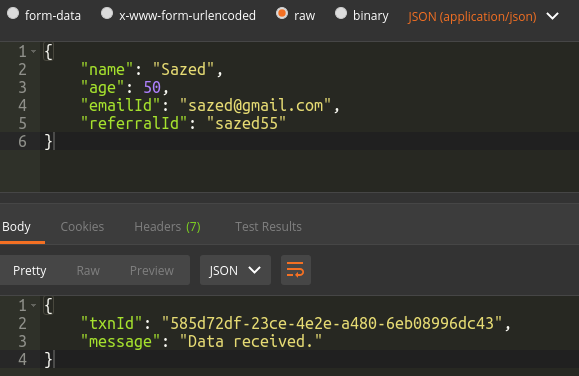
<ol>
  <li>S3 - <code class="language-plaintext highlighter-rouge">s3</code></li>
  <li>ECR - <code class="language-plaintext highlighter-rouge">ecr.api</code>, <code class="language-plaintext highlighter-rouge">ecr.dkr</code></li>
  <li>EC2 - <code class="language-plaintext highlighter-rouge">ec2</code></li>
  <li>EKS - <code class="language-plaintext highlighter-rouge">eks</code></li>
  <li>Security Token Service - <code class="language-plaintext highlighter-rouge">sts</code></li>
  <li>Cloudwatch - <code class="language-plaintext highlighter-rouge">logs</code>, <code class="language-plaintext highlighter-rouge">monitoring</code></li>
  <li>Systems Manager - <code class="language-plaintext highlighter-rouge">ec2messages</code>, <code class="language-plaintext highlighter-rouge">ssm</code>, <code class="language-plaintext highlighter-rouge">ssmmessages</code></li>
  <li>Lambda - <code class="language-plaintext highlighter-rouge">lambda</code></li>
  <li>Step Functions - <code class="language-plaintext highlighter-rouge">states</code>, <code class="language-plaintext highlighter-rouge">sync-states</code></li>
</ol>

<p>For reference, <a href="https://docs.aws.amazon.com/vpc/latest/privatelink/aws-services-privatelink-support.html">here</a>’s the full list of AWS PrivateLink endpoint service names.</p>

<p>Once you have created all the above mentioned endpoints in your isolated subnets, you can try the CDK Construct to build the EKS Cluster. I have pushed the example and the <a href="https://github.com/aws-samples/aws-cdk-examples/tree/main/java/eks/private-cluster">full code on GitHub</a> and is available in the <code class="language-plaintext highlighter-rouge">aws-samples</code> repository. Please refer to the <code class="language-plaintext highlighter-rouge">README</code> page that has the step-by-step approach to deploy and test the cluster.</p>
<p>This example is also referenced in the <a href="https://docs.aws.amazon.com/cdk/api/v2/docs/aws-cdk-lib.aws_eks-readme.html">official AWS CDK documentation</a> on how to create an EKS cluster in isolated subnets under the Amazon EKS Construct Library. Search for the keyword <code class="language-plaintext highlighter-rouge">Isolated</code> where a note is created to refer to our example.</p>]]></content><author><name></name></author><category term="aws" /><category term="aws" /><category term="eks" /><category term="cdk" /><category term="kubernetes" /><summary type="html"><![CDATA[Guide to create a private Kubernetes cluster in AWS using CDK]]></summary></entry><entry><title type="html">Updating the metadata of video timestamps using exiftool</title><link href="https://eidorian.com/posts/update-video-timestamp-on-sony-cameras/" rel="alternate" type="text/html" title="Updating the metadata of video timestamps using exiftool" /><published>2024-01-02T00:00:00+08:00</published><updated>2024-09-15T22:19:32+08:00</updated><id>https://eidorian.com/posts/update-video-timestamp-on-sony-cameras</id><content type="html" xml:base="https://eidorian.com/posts/update-video-timestamp-on-sony-cameras/"><![CDATA[<p>I have a Sony a7c and Sony RX 100 M3. Both of these cameras when recording videos seem to disregard the timezone settings and just use UTC time. Whenever I import these videos to <strong>digikam</strong> which is the software I use to manage my photos, the sorting gets messed up as the times of the videos are not synced with the photos which has the correct local time with timezone.</p>

<p>In digikam there is a setting to adjust the date and time but it does not seem to edit the video metadata itself. I’m using digikam version 8.0.0 on Linux Mint 20. It does update only locally in digikam. If you upload your videos to other software or to the cloud, the original incorrect timestamp is retained. So here are some commands to use in <code class="language-plaintext highlighter-rouge">exiftool</code> to modify the metadata directly on the video file.</p>

<p>Check all the available metadata with date in its name</p>

<p><code class="language-plaintext highlighter-rouge">exiftool myvideo.mp4 | grep -i date</code></p>

<p>Sample output</p>
<div class="language-plaintext highlighter-rouge"><div class="highlight"><pre class="highlight"><code><table class="rouge-table"><tbody><tr><td class="rouge-gutter gl"><pre class="lineno">1
2
3
4
5
6
7
8
9
10
11
</pre></td><td class="rouge-code"><pre>File Modification Date/Time     : 2024:01:02 18:47:47+08:00
File Access Date/Time           : 2024:01:02 18:47:45+08:00
File Inode Change Date/Time     : 2024:01:02 18:47:58+08:00
Create Date                     : 2023:06:17 03:30:04
Modify Date                     : 2023:06:17 03:30:04
Track Create Date               : 2023:06:17 03:30:04
Track Modify Date               : 2023:06:17 03:30:04
Media Create Date               : 2023:06:17 03:30:04
Media Modify Date               : 2023:06:17 03:30:04
Last Update                     : 2023:06:17 11:30:04+08:00
Creation Date Value             : 2023:06:17 11:30:04+08:00
</pre></td></tr></tbody></table></code></pre></div></div>

<p>If there’s one metadata field that has the correct timestamp based on how you know when the video was taken or based on the generated thumbnail photo of that video, then use that field to copy to the other timestamp fields. In Sony a7c, the <code class="language-plaintext highlighter-rouge">Creation Date Value</code> seems to be the correct field, so we use that to copy over its value to the other timestmap fields. The fields to update are the <code class="language-plaintext highlighter-rouge">Create Date</code>, <code class="language-plaintext highlighter-rouge">Modify Date</code>, <code class="language-plaintext highlighter-rouge">Track Create Date</code>, <code class="language-plaintext highlighter-rouge">Track Modify Date</code>, <code class="language-plaintext highlighter-rouge">Media Create Date</code>, and <code class="language-plaintext highlighter-rouge">Media Modify Date</code>.</p>

<p>To update all timestamp metadata of all mp4 files in the current directory to use the <code class="language-plaintext highlighter-rouge">Creation Date Value</code></p>
<div class="language-plaintext highlighter-rouge"><div class="highlight"><pre class="highlight"><code><table class="rouge-table"><tbody><tr><td class="rouge-gutter gl"><pre class="lineno">1
</pre></td><td class="rouge-code"><pre>exiftool '-mediacreatedate&lt;creationdatevalue' '-mediamodifydate&lt;creationdatevalue' '-createdate&lt;creationdatevalue' '-modifydate&lt;creationdatevalue' '-trackcreatedate&lt;creationdatevalue' '-trackmodifydate&lt;creationdatevalue' -ext mp4 .
</pre></td></tr></tbody></table></code></pre></div></div>

<p>In the <code class="language-plaintext highlighter-rouge">exiftool</code> command above, the less than sign means it will copy over the value of the field on the right to the field on the left. The dash <code class="language-plaintext highlighter-rouge">-</code> indicates the field to use and the <code class="language-plaintext highlighter-rouge">-ext</code> means the extension file to update. Then the <code class="language-plaintext highlighter-rouge">.</code> of course refers to the current directory.</p>

<p>Lastly, <code class="language-plaintext highlighter-rouge">exiftool</code> generates a backup with <code class="language-plaintext highlighter-rouge">_original</code> suffix. After you’ve verified the metadata update, you can delete this backup with the <code class="language-plaintext highlighter-rouge">-delete_original</code> option.</p>

<p>To delete the <code class="language-plaintext highlighter-rouge">_original</code> copies</p>
<div class="language-plaintext highlighter-rouge"><div class="highlight"><pre class="highlight"><code><table class="rouge-table"><tbody><tr><td class="rouge-gutter gl"><pre class="lineno">1
</pre></td><td class="rouge-code"><pre>exiftool -delete_original -ext mp4 .
</pre></td></tr></tbody></table></code></pre></div></div>

<p>Learn more about <code class="language-plaintext highlighter-rouge">exiftool</code> <a href="https://exiftool.org/examples.html">here</a>.</p>]]></content><author><name></name></author><category term="photography" /><category term="photography" /><category term="sony" /><category term="exiftool" /><category term="a7c" /><category term="rx100m3" /><summary type="html"><![CDATA[Updating the metadata of video timestamps using exiftool]]></summary></entry><entry><title type="html">Hosting S3 Static Website using CloudFront with OAI</title><link href="https://eidorian.com/posts/cloudfront-s3-static-website-with-oai/" rel="alternate" type="text/html" title="Hosting S3 Static Website using CloudFront with OAI" /><published>2020-02-08T00:00:00+08:00</published><updated>2024-09-15T22:19:32+08:00</updated><id>https://eidorian.com/posts/cloudfront-s3-static-website-with-oai</id><content type="html" xml:base="https://eidorian.com/posts/cloudfront-s3-static-website-with-oai/"><![CDATA[<p>An unsecure website is not acceptable these days. If you’re hosting your website using AWS S3 bucket’s static website
hosting attribute, its one limitation is that your pages are hosted using <strong>http only</strong> and browsers will report this as
<strong>Not Secure</strong>. This does not give a good impression to your visitors.</p>

<p>Another security compromise that you have to make, and the more critical one, is that you need set your S3 
bucket publicly readable. By default, this is not recommended by AWS. More and more
<a href="https://www.computerweekly.com/news/252476870/Exposed-AWS-buckets-again-implicated-in-multiple-data-leaks">security breaches</a>
are happening due to wrongly configured permissions of S3 buckets.</p>

<p>So how do we solve this? Use <code class="language-plaintext highlighter-rouge">CloudFront</code> with <code class="language-plaintext highlighter-rouge">Object Access Identity</code> or <code class="language-plaintext highlighter-rouge">(OAI)</code>.</p>

<p>CloudFront is the AWS CDN solution where you can target your private S3 bucket as the origin using OAI. This will be
the identity defined in your S3’s bucket policy to grant permission <strong>only</strong> to the CloudFront distribution and nobody
else.</p>

<p>CloudFront also ensures the data in transit are in <strong>https</strong> and secure.</p>

<p>Here’s the overview of the set-up using CloudFront.</p>

<h2 id="architecture-overview">Architecture Overview</h2>
<blockquote>
  <p><img src="/assets/img/cloudfront-website/aws-cloudfront-s3-static-website.png" alt="architecture-cloudfront-website" /></p>
</blockquote>

<blockquote>
  <ol>
    <li><code class="language-plaintext highlighter-rouge">Route 53</code> resolves the domain name to the target CloudFront distribution.
For example, in this website, <code class="language-plaintext highlighter-rouge">code.eidorian.com</code> is registered in Route 53 and it resolves it to the target alias
<code class="language-plaintext highlighter-rouge">d123456.cloudfront.com</code> which is the CloudFront distribution.</li>
    <li>The user’s browser downloads the website’s CloudFront distribution. If there’s a cache hit, the distribution returns
the object immediately.</li>
    <li>The SSL certificate is managed in <code class="language-plaintext highlighter-rouge">Amazon ACM</code> and configured in CloudFront during the creation of the distribution.</li>
    <li>The CloudFront distribution is replicated across all edge locations of AWS.</li>
    <li>If extra logic handling is needed, a <code class="language-plaintext highlighter-rouge">Lambda@Edge</code> can be deployed on the edge locations to do additional
processing.</li>
    <li>The private S3 bucket containing the static website is accessed by the CloudFront distribution via the granted
permission given to its OAI in the S3’s bucket policy.</li>
    <li>The requested object is returned to the distribution.</li>
  </ol>
</blockquote>

<h2 id="pre-requisites">Pre-requisites</h2>
<p>Before creating the CloudFront distribution, ensure that you have the following items ready.</p>

<ol>
  <li>An S3 bucket with the static content of the website.</li>
  <li>A registered domain name.</li>
  <li>An SSL certificate in <code class="language-plaintext highlighter-rouge">AWS Certificate Manager</code> or <code class="language-plaintext highlighter-rouge">ACM</code>.</li>
</ol>

<h3 id="set-up-the-s3-bucket-static-content">Set-up the S3 bucket static content</h3>
<p>The S3 bucket contains the website. Have something like <em>index.html</em> at least for testing and an error page like
<em>error.html</em></p>

<blockquote>
  <p>In my case, I am using <a href="https://github.com/jekyll"><code class="language-plaintext highlighter-rouge">Jekyll</code></a> which is a static website generator. It has an
index.html and a 404.html error page. We will be using that in this example.</p>
</blockquote>

<h3 id="register-a-domain-name">Register a domain name</h3>
<p>You can use Route 53 or some other domain name registrar to register your domain.</p>

<blockquote>
  <p><img src="/assets/img/cloudfront-website/route53-register-domain-name.png" alt="route53-register-domain-name" /></p>
</blockquote>

<h3 id="create-an-ssl-certificate-in-aws-certificate-manager">Create an SSL certificate in AWS Certificate Manager</h3>
<p>If you don’t have a certificate yet, create one for your registered domain name in ACM.</p>

<blockquote>
  <p><strong>Important:</strong> Create the certificate in the us-east-1 N. Virginia region. CloudFront will only see the certificates
in this region.</p>
</blockquote>

<p>Make sure that all the CNAMEs that you will use in CloudFront are also included in the certificate. Here I’m adding
both <strong>eidorian.com</strong> and <strong>code.eidorian.com</strong>.</p>

<blockquote>
  <p><img src="/assets/img/cloudfront-website/acm-add-domain-names.png" alt="acm-add-domain-names" /></p>
</blockquote>

<p>Then wait for the validation status to be <code class="language-plaintext highlighter-rouge">Success</code>.</p>

<p>If it’s <code class="language-plaintext highlighter-rouge">Pending</code> for quite a while, check the details. It may be waiting for an action from you like adding a record
to Route 53.</p>

<blockquote>
  <p><img src="/assets/img/cloudfront-website/acm-domain-names-status.png" alt="acm-domain-names-status" /></p>
</blockquote>

<blockquote>
  <p>Take note of the certificate’s ARN. You will need it later in the parameters section.</p>
</blockquote>

<h2 id="create-the-cloudfront-distribution-using-cloudformation">Create the CloudFront distribution using CloudFormation</h2>
<p>Okay, so now that we have all the pre-reqs ready, let’s create the CloudFront distribution. It’s not very exciting to
use the AWS console, let’s do it the <code class="language-plaintext highlighter-rouge">CloudFormation</code> way!</p>

<p>I have prepared a re-usable template below with three input <code class="language-plaintext highlighter-rouge">Parameters</code>. These are the three pre-requisites mentioned
above - bucket name, SSL cert, and the CNAMEs.</p>

<h3 id="cloudformation-template">CloudFormation Template</h3>
<div class="language-yaml highlighter-rouge"><div class="highlight"><pre class="highlight"><code><table class="rouge-table"><tbody><tr><td class="rouge-gutter gl"><pre class="lineno">1
2
3
4
5
6
7
8
9
10
11
12
13
14
15
16
17
18
19
20
21
22
23
24
25
26
27
28
29
30
31
32
33
34
35
36
37
38
39
40
41
42
43
44
45
46
47
48
49
50
51
</pre></td><td class="rouge-code"><pre><span class="na">AWSTemplateFormatVersion</span><span class="pi">:</span> <span class="s1">'</span><span class="s">2010-09-09'</span>
<span class="na">Parameters</span><span class="pi">:</span>
  <span class="na">BucketName</span><span class="pi">:</span>
    <span class="na">Description</span><span class="pi">:</span> <span class="s">S3 Bucket name</span>
    <span class="na">Type</span><span class="pi">:</span> <span class="s">String</span>
  <span class="na">SSLCert</span><span class="pi">:</span>
    <span class="na">Description</span><span class="pi">:</span> <span class="s">ACM certificate arn</span>
    <span class="na">Type</span><span class="pi">:</span> <span class="s">String</span>
  <span class="na">DomainNames</span><span class="pi">:</span>
    <span class="na">Description</span><span class="pi">:</span> <span class="s">Domain names or CNAMEs</span>
    <span class="na">Type</span><span class="pi">:</span> <span class="s">CommaDelimitedList</span>
<span class="na">Resources</span><span class="pi">:</span>
  <span class="na">WebsiteDistribution</span><span class="pi">:</span>
    <span class="na">Type</span><span class="pi">:</span> <span class="s">AWS::CloudFront::Distribution</span>
    <span class="na">Properties</span><span class="pi">:</span>
      <span class="na">DistributionConfig</span><span class="pi">:</span>
        <span class="na">Aliases</span><span class="pi">:</span> <span class="kt">!Ref</span> <span class="s">DomainNames</span>
        <span class="na">Origins</span><span class="pi">:</span>
        <span class="pi">-</span> <span class="na">DomainName</span><span class="pi">:</span> <span class="kt">!Join</span> <span class="pi">[</span><span class="s1">'</span><span class="s">'</span><span class="pi">,</span> <span class="pi">[</span><span class="kt">!Ref</span> <span class="nv">BucketName</span><span class="pi">,</span> <span class="s1">'</span><span class="s">.s3.amazonaws.com'</span><span class="pi">]]</span>
          <span class="na">Id</span><span class="pi">:</span> <span class="kt">!Join</span> <span class="pi">[</span><span class="s1">'</span><span class="s">'</span><span class="pi">,</span> <span class="pi">[</span><span class="kt">!Ref</span> <span class="nv">BucketName</span><span class="pi">,</span> <span class="s1">'</span><span class="s">S3OriginId'</span><span class="pi">]]</span>
          <span class="na">S3OriginConfig</span><span class="pi">:</span>
            <span class="na">OriginAccessIdentity</span><span class="pi">:</span> <span class="kt">!Join</span> <span class="pi">[</span><span class="s1">'</span><span class="s">'</span><span class="pi">,</span> <span class="pi">[</span><span class="s1">'</span><span class="s">origin-access-identity/cloudfront/'</span><span class="pi">,</span> <span class="kt">!Ref</span> <span class="nv">CloudFrontOAI</span><span class="pi">]]</span>
        <span class="na">Enabled</span><span class="pi">:</span> <span class="s1">'</span><span class="s">true'</span>
        <span class="na">Comment</span><span class="pi">:</span> <span class="kt">!Join</span> <span class="pi">[</span><span class="s1">'</span><span class="s">'</span><span class="pi">,</span> <span class="pi">[</span><span class="s1">'</span><span class="s">CloudFront</span><span class="nv"> </span><span class="s">for</span><span class="nv"> </span><span class="s">S3</span><span class="nv"> </span><span class="s">bucket</span><span class="nv"> </span><span class="s">'</span><span class="pi">,</span> <span class="kt">!Ref</span> <span class="nv">BucketName</span><span class="pi">]]</span>
        <span class="na">DefaultRootObject</span><span class="pi">:</span> <span class="s">index.html</span>
        <span class="na">CustomErrorResponses</span><span class="pi">:</span>
          <span class="pi">-</span> <span class="na">ErrorCode</span><span class="pi">:</span> <span class="m">404</span>
            <span class="na">ResponseCode</span><span class="pi">:</span> <span class="m">200</span>
            <span class="na">ResponsePagePath</span><span class="pi">:</span> <span class="s">/404.html</span>
          <span class="pi">-</span> <span class="na">ErrorCode</span><span class="pi">:</span> <span class="m">403</span>
            <span class="na">ResponseCode</span><span class="pi">:</span> <span class="m">200</span>
            <span class="na">ResponsePagePath</span><span class="pi">:</span> <span class="s">/404.html</span>
        <span class="na">DefaultCacheBehavior</span><span class="pi">:</span>
          <span class="na">AllowedMethods</span><span class="pi">:</span>
          <span class="pi">-</span> <span class="s">GET</span>
          <span class="pi">-</span> <span class="s">HEAD</span>
          <span class="na">TargetOriginId</span><span class="pi">:</span> <span class="kt">!Join</span> <span class="pi">[</span><span class="s1">'</span><span class="s">'</span><span class="pi">,</span> <span class="pi">[</span><span class="kt">!Ref</span> <span class="nv">BucketName</span><span class="pi">,</span> <span class="s1">'</span><span class="s">S3OriginId'</span><span class="pi">]]</span>
          <span class="na">ForwardedValues</span><span class="pi">:</span>
            <span class="na">QueryString</span><span class="pi">:</span> <span class="s1">'</span><span class="s">false'</span>
            <span class="na">Cookies</span><span class="pi">:</span>
              <span class="na">Forward</span><span class="pi">:</span> <span class="s">none</span>
          <span class="na">ViewerProtocolPolicy</span><span class="pi">:</span> <span class="s">redirect-to-https</span>
        <span class="na">ViewerCertificate</span><span class="pi">:</span>
          <span class="na">AcmCertificateArn</span><span class="pi">:</span> <span class="kt">!Ref</span> <span class="s">SSLCert</span>
          <span class="na">MinimumProtocolVersion</span><span class="pi">:</span> <span class="s">TLSv1</span>
          <span class="na">SslSupportMethod</span><span class="pi">:</span> <span class="s">sni-only</span>
  <span class="na">CloudFrontOAI</span><span class="pi">:</span>
    <span class="na">Type</span><span class="pi">:</span> <span class="s">AWS::CloudFront::CloudFrontOriginAccessIdentity</span>
    <span class="na">Properties</span><span class="pi">:</span>
      <span class="na">CloudFrontOriginAccessIdentityConfig</span><span class="pi">:</span>
        <span class="na">Comment</span><span class="pi">:</span> <span class="kt">!Join</span> <span class="pi">[</span><span class="s1">'</span><span class="s">'</span><span class="pi">,</span> <span class="pi">[</span><span class="kt">!Ref</span> <span class="nv">BucketName</span><span class="pi">,</span> <span class="s1">'</span><span class="s">-origin-access-identity'</span><span class="pi">]]</span>
</pre></td></tr></tbody></table></code></pre></div></div>

<p>In the <code class="language-plaintext highlighter-rouge">Resources</code> section, we have two types. One is the CloudFront distribution <code class="language-plaintext highlighter-rouge">AWS::CloudFront::Distribution</code> and
the other one is the OAI <code class="language-plaintext highlighter-rouge">AWS::CloudFront::CloudFrontOriginAccessIdentity</code>.</p>

<h3 id="awscloudfrontdistribution">AWS::CloudFront::Distribution</h3>
<p>In the CloudFront distribution resource, we map the parameter values to the distribution properties.</p>

<table>
  <thead>
    <tr>
      <th>Property</th>
      <th>Parameter</th>
      <th>Example</th>
    </tr>
  </thead>
  <tbody>
    <tr>
      <td>Aliases</td>
      <td>DomainNames</td>
      <td>eidorian.com,code.eidorian.com</td>
    </tr>
    <tr>
      <td>DomainName</td>
      <td>BucketName</td>
      <td>mybucket.s3.amazonaws.com</td>
    </tr>
    <tr>
      <td>AcmCertificateArn</td>
      <td>SSLCert</td>
      <td>arn:aws:acm:us-east-1:youraccount:certificate/1234</td>
    </tr>
    <tr>
      <td>OriginAccessIdentity</td>
      <td>via Reference</td>
      <td><em>CloudFrontOAI</em></td>
    </tr>
  </tbody>
</table>

<ol>
  <li>The <code class="language-plaintext highlighter-rouge">Aliases</code> property sets the CNAMEs of the distribution. This is required later when setting the Route53 record
to target the distribution alias. In the <strong>DomainNames</strong> parameter, put your registered domain name including the
alternate names.</li>
  <li>The <code class="language-plaintext highlighter-rouge">DomainName</code> property is the target origin domain name of the distribution where the CloudFront will get its
content. In this case, it is the S3 bucket containing the website. The CloudFormation template uses the <strong>BucketName</strong>
parameter to set this property by concatenating the bucket name with the <em>.s3.amazonaws.com</em> suffix. This suffix is the
AWS domain name for S3 buckets.</li>
  <li>The <code class="language-plaintext highlighter-rouge">AcmCertificateArn</code> property tells CloudFront which SSL certificate to use. Here the parameter <strong>SSLCert</strong>
defines this with the ARN string of the certificate in ACM.
    <blockquote>
      <p>Double-check your cert ARN, it should be in the us-east-1 region.</p>
    </blockquote>
  </li>
  <li>The <code class="language-plaintext highlighter-rouge">OriginAccessIdentity</code> property is the key property here that tells CloudFront which ID to use when accessing
the origin (the S3 bucket). There is no parameter passed to this since we do not know yet the OAI prior to the
CloudFormation stack creation. To get a hold of the reference of the OAI, use the OAI Resource’s name as reference
which is <strong>CloudFrontOAI</strong> and it requires a prefix of <strong>origin-access-identity/cloudfront/</strong>.</li>
</ol>

<p>For the other properties of the distribution, you can look them up
<a href="https://docs.aws.amazon.com/AWSCloudFormation/latest/UserGuide/aws-properties-cloudfront-distribution-distributionconfig.html">here</a>
for details. But briefly, what we configured here is that CloudFront will default to <em>index.html</em> in the root folder.
If the S3 origin returns <strong>404 Not Found</strong> or <strong>403 Forbidden</strong>, CloudFront will display the error page <em>404.html</em> and
remap the response to HTTP 200.</p>

<p>For convenience, some of the properties like IDs and comments are set by the template automatically using the bucket
name. For example, the Origin ID is set to <strong>{BucketName}S3OriginId</strong>. You can change this string value if you want.</p>

<h3 id="awscloudfrontcloudfrontoriginaccessidentity">AWS::CloudFront::CloudFrontOriginAccessIdentity</h3>
<p>This is the OAI resource that creates the Origin Access Identity with the name <strong>CloudFrontOAI</strong>. It simply creates
the OAI and assigns a comment for description purpose.</p>

<blockquote>
  <p>If you already have an existing OAI and want to re-use it, you can just pass it’s ID as a parameter to set
the OriginAccessIdentity. You won’t need the OAI resource in the template.</p>
</blockquote>

<h3 id="cloudformation-json-property-file">CloudFormation JSON property file</h3>
<p>We can pass the parameter values to the template via command line option, AWS console, or using a property file. We
will use the last one to create the CloudFormation stack.</p>

<p>Here’s a sample property file of the parameters and their values.</p>

<div class="language-json highlighter-rouge"><div class="highlight"><pre class="highlight"><code><table class="rouge-table"><tbody><tr><td class="rouge-gutter gl"><pre class="lineno">1
2
3
4
5
6
7
8
9
10
11
12
13
14
</pre></td><td class="rouge-code"><pre><span class="p">[</span><span class="w">
    </span><span class="p">{</span><span class="w">
        </span><span class="nl">"ParameterKey"</span><span class="p">:</span><span class="w"> </span><span class="s2">"BucketName"</span><span class="p">,</span><span class="w">
        </span><span class="nl">"ParameterValue"</span><span class="p">:</span><span class="w"> </span><span class="s2">"code.eidorian.com"</span><span class="w">
    </span><span class="p">},</span><span class="w">
    </span><span class="p">{</span><span class="w">
        </span><span class="nl">"ParameterKey"</span><span class="p">:</span><span class="w"> </span><span class="s2">"SSLCert"</span><span class="p">,</span><span class="w">
        </span><span class="nl">"ParameterValue"</span><span class="p">:</span><span class="w"> </span><span class="s2">"arn:aws:acm:us-east-1:youraccount:certificate/11111111-1111-1111-1111-111111111111"</span><span class="w">
    </span><span class="p">},</span><span class="w">
    </span><span class="p">{</span><span class="w">
        </span><span class="nl">"ParameterKey"</span><span class="p">:</span><span class="w"> </span><span class="s2">"DomainNames"</span><span class="p">,</span><span class="w">
        </span><span class="nl">"ParameterValue"</span><span class="p">:</span><span class="w"> </span><span class="s2">"eidorian.com,code.eidorian.com"</span><span class="w">
    </span><span class="p">}</span><span class="w">
</span><span class="p">]</span><span class="w">
</span></pre></td></tr></tbody></table></code></pre></div></div>

<h3 id="executing-the-cloudformation-template-using-aws-cli">Executing the CloudFormation template using AWS CLI</h3>
<p>Alright. We are all set.</p>

<p>Open a terminal and run the <code class="language-plaintext highlighter-rouge">AWS CLI</code> to create the stack.</p>

<blockquote>
  <p>In the sample commands, the template file name is <code class="language-plaintext highlighter-rouge">cloudfront-s3-origin.yaml</code> and the property file name is 
<code class="language-plaintext highlighter-rouge">code-eidorian-com-properties.json</code></p>
</blockquote>

<h4 id="create-stack">Create stack</h4>
<div class="language-plaintext highlighter-rouge"><div class="highlight"><pre class="highlight"><code><table class="rouge-table"><tbody><tr><td class="rouge-gutter gl"><pre class="lineno">1
2
3
</pre></td><td class="rouge-code"><pre>aws cloudformation create-stack --stack-name cloudfront-s3-code-eidorian-com \
--template-body file://./cloudfront-s3-origin.yaml \
--parameters file://./code-eidorian-com-properties.json
</pre></td></tr></tbody></table></code></pre></div></div>

<h4 id="delete-stack">Delete stack</h4>
<p>If something goes wrong and your stack rolls back, delete the stack and
re-create again.</p>

<div class="language-plaintext highlighter-rouge"><div class="highlight"><pre class="highlight"><code><table class="rouge-table"><tbody><tr><td class="rouge-gutter gl"><pre class="lineno">1
</pre></td><td class="rouge-code"><pre>aws cloudformation delete-stack --stack-name cloudfront-s3-code-eidorian-com
</pre></td></tr></tbody></table></code></pre></div></div>

<h4 id="update-stack">Update stack</h4>
<p>If you update some of the properties in the template, simply update the stack.</p>

<div class="language-plaintext highlighter-rouge"><div class="highlight"><pre class="highlight"><code><table class="rouge-table"><tbody><tr><td class="rouge-gutter gl"><pre class="lineno">1
2
3
</pre></td><td class="rouge-code"><pre>aws cloudformation update-stack --stack-name cloudfront-s3-code-eidorian-com \
--template-body file://./cloudfront-s3-origin.yaml \
--parameters file://./code-eidorian-com-properties.json
</pre></td></tr></tbody></table></code></pre></div></div>

<p>The CloudFront distribution creation could take several minutes (~30 mins) to complete. The reason for this is
it that it updates all the edge locations and distributes your website content. Even the delete and update stack
could take the same amount of time.</p>

<blockquote>
  <p><img src="/assets/img/cloudfront-website/cloudfront-deployed-status.png" alt="cloudfront-deployed-status" /></p>
</blockquote>

<p>Wait for your distribution status until it says <code class="language-plaintext highlighter-rouge">Deployed</code>. Then go to the distribution and verify the settings.
Hopefully everything went well and your CloudFront distribution was created successfully with all the correct properties
in place.</p>

<h3 id="verify-the-cloudfront-distribution">Verify the CloudFront distribution</h3>
<p>Open your distribution and look at the tabs.</p>

<h4 id="general-tab">General tab</h4>
<p>In the general tab you will see the CNAMEs you put in the Alias property, the SSL certificate ARN and a link to it, the
index.html as the default root object, the sni-only in the SSL supported method, the minimum protocol TLSv1 and the
comment set by the template.</p>

<blockquote>
  <p><img src="/assets/img/cloudfront-website/cloudfront-general-tab.png" alt="cloudfront-general-tab" /></p>
</blockquote>

<h4 id="origins-tab">Origins tab</h4>
<p>In the origins tab is where you will find the OAI, the Origin ID we gave and the S3 origin domain name.</p>

<blockquote>
  <p><img src="/assets/img/cloudfront-website/cloudfront-origins-tab.png" alt="cloudfront-origins-tab" /></p>
</blockquote>

<h4 id="behaviors-tab">Behaviors tab</h4>
<p>The <strong>DefaultCacheBehavior</strong> property values can be seen in the behaviors tab.</p>

<blockquote>
  <p><img src="/assets/img/cloudfront-website/cloudfront-behaviors-tab.png" alt="cloudfront-behaviors-tab" /></p>
</blockquote>

<p>If you edit the behavior item, you will find more settings including the <strong>GET</strong> and <strong>HEAD</strong> methods we set in the
template.</p>

<blockquote>
  <p><img src="/assets/img/cloudfront-website/cloudfront-behavior-edit.png" alt="cloudfront-behavior-edit" /></p>
</blockquote>

<h4 id="error-pages-tab">Error pages tab</h4>
<p>Lastly, in the error pages tab, where we set the 401.html page as the default error page for errors 404 and 403
can be verified here.</p>

<blockquote>
  <p><img src="/assets/img/cloudfront-website/cloudfront-error-pages-tab.png" alt="cloudfront-error-pages-tab" /></p>
</blockquote>

<h2 id="update-the-s3s-bucket-policy">Update the S3’s bucket policy</h2>
<p>Now that the CloudFront distribution has been created and verified, there’s just one last thing you need to do
before testing it out. Tell the S3 bucket to allow the OAI to access its content. Here’s the part where you update
the S3 bucket’s policy and make it private allowing only the OAI arn as the <code class="language-plaintext highlighter-rouge">Principal</code> to access the bucket and no
one else.</p>

<div class="language-json highlighter-rouge"><div class="highlight"><pre class="highlight"><code><table class="rouge-table"><tbody><tr><td class="rouge-gutter gl"><pre class="lineno">1
2
3
4
5
6
7
8
9
10
11
12
13
14
</pre></td><td class="rouge-code"><pre><span class="p">{</span><span class="w">
    </span><span class="nl">"Version"</span><span class="p">:</span><span class="w"> </span><span class="s2">"2012-10-17"</span><span class="p">,</span><span class="w">
    </span><span class="nl">"Statement"</span><span class="p">:</span><span class="w"> </span><span class="p">[</span><span class="w">
        </span><span class="p">{</span><span class="w">
            </span><span class="nl">"Sid"</span><span class="p">:</span><span class="w"> </span><span class="s2">"Allow-OAI-Access-To-Bucket"</span><span class="p">,</span><span class="w">
            </span><span class="nl">"Effect"</span><span class="p">:</span><span class="w"> </span><span class="s2">"Allow"</span><span class="p">,</span><span class="w">
            </span><span class="nl">"Principal"</span><span class="p">:</span><span class="w"> </span><span class="p">{</span><span class="w">
                </span><span class="nl">"AWS"</span><span class="p">:</span><span class="w"> </span><span class="s2">"arn:aws:iam::cloudfront:user/CloudFront Origin Access Identity E1111111111111"</span><span class="w">
            </span><span class="p">},</span><span class="w">
            </span><span class="nl">"Action"</span><span class="p">:</span><span class="w"> </span><span class="s2">"s3:GetObject"</span><span class="p">,</span><span class="w">
            </span><span class="nl">"Resource"</span><span class="p">:</span><span class="w"> </span><span class="s2">"arn:aws:s3:::s3bucket/*"</span><span class="w">
        </span><span class="p">}</span><span class="w">
    </span><span class="p">]</span><span class="w">
</span><span class="p">}</span><span class="w">
</span></pre></td></tr></tbody></table></code></pre></div></div>
<p>Then, you can now safely make your S3 private by setting the S3 static website to <strong>disabled</strong></p>

<blockquote>
  <p><img src="/assets/img/cloudfront-website/s3-disable-static-website.png" alt="s3-disable-static-website" /></p>
</blockquote>

<p>and blocking all public access.</p>

<blockquote>
  <p><img src="/assets/img/cloudfront-website/s3-block-all-public-access.png" alt="s3-block-all-public-access" /></p>
</blockquote>

<h2 id="test-your-new-secure-website">Test your new secure website</h2>
<p>That’s all folks. Now try and hit your website using <code class="language-plaintext highlighter-rouge">https</code>. The browser should now say it is secure.
If you try an invalid path or page, you should see the default error page. If you try going to your S3 bucket’s
direct url like the index.html S3 url, the access will be denied.</p>

<h2 id="final-thoughts">Final thoughts</h2>
<p>A lot steps here and I tried to explain as much detail as I can but hopefully this is helpful especially the re-usable
CloudFormation template. I removed the Lambda@Edge part since it is optional and this is getting long. I will talk
about it more on my next post. Let me know your comments below.</p>]]></content><author><name></name></author><category term="aws" /><category term="aws" /><category term="cloud" /><category term="serverless" /><category term="cloudformation" /><category term="cloudfront" /><category term="route53" /><category term="lambda" /><category term="lambdaedge" /><category term="s3" /><category term="oai" /><category term="acm" /><summary type="html"><![CDATA[Hosting static website on private S3 bucket using Object Access Identity in CloudFront]]></summary></entry><entry><title type="html">Serverless Webhooks using AWS Lambda - Part 4</title><link href="https://eidorian.com/posts/aws-poc-data-feed-container/" rel="alternate" type="text/html" title="Serverless Webhooks using AWS Lambda - Part 4" /><published>2020-01-12T00:00:00+08:00</published><updated>2024-09-15T22:19:32+08:00</updated><id>https://eidorian.com/posts/aws-poc-data-feed-container</id><content type="html" xml:base="https://eidorian.com/posts/aws-poc-data-feed-container/"><![CDATA[<blockquote>
  <p>This is the fourth and last part of my Serverless Webhooks post. You can find Part 3
<a href="/posts/aws-poc-data-feed-processor/">here</a> where we built the processor application, Part 2
<a href="/posts/aws-poc-data-feed-sqs/">here</a> where we integrated SQS and Part 1 
<a href="/posts/aws-poc-data-feed-serverless/">here</a> where we built the Lambda function handler.</p>
</blockquote>

<p>Let’s review again the architecture.</p>

<h2 id="architecture">Architecture</h2>
<blockquote>
  <p><img src="/assets/img/poc-data-feed/architecture-poc-data-feed-containers.png" alt="architecture-container" /></p>
</blockquote>

<p>In the previous post, we already built the <code class="language-plaintext highlighter-rouge">poc-data-processor</code> application and tested locally. It can read the SQS
<code class="language-plaintext highlighter-rouge">poc-data-feed-queue</code> and update the DynamoDB table <code class="language-plaintext highlighter-rouge">poc-data-feed</code>. Our final step is to run this application on AWS.
That is we will build the <code class="language-plaintext highlighter-rouge">Docker</code> image, push it to <code class="language-plaintext highlighter-rouge">ECR</code>, deploy to an <code class="language-plaintext highlighter-rouge">ECS</code> container and test in on AWS.</p>

<h2 id="build-the-docker-image-and-push-to-ecr">Build the Docker image and push to ECR</h2>
<p>Since this is a Spring Boot application, in the <code class="language-plaintext highlighter-rouge">Dockerfile</code> we will use the <code class="language-plaintext highlighter-rouge">openjdk:8-jdk-alpine</code> image.</p>

<div class="language-docker highlighter-rouge"><div class="highlight"><pre class="highlight"><code><table class="rouge-table"><tbody><tr><td class="rouge-gutter gl"><pre class="lineno">1
2
3
4
5
</pre></td><td class="rouge-code"><pre><span class="k">FROM</span><span class="s"> openjdk:8-jdk-alpine</span>
<span class="k">VOLUME</span><span class="s"> /tmp</span>
<span class="k">ARG</span><span class="s"> JAR_FILE</span>
<span class="k">COPY</span><span class="s"> ${JAR_FILE} app.jar</span>
<span class="k">ENTRYPOINT</span><span class="s"> ["java", "-Djava.security.egd=file:/dev/./urandom", "-jar", "/app.jar"]</span>
</pre></td></tr></tbody></table></code></pre></div></div>

<p>Build the application</p>

<p><code class="language-plaintext highlighter-rouge">mvn clean package</code></p>

<p>Build the Docker image</p>

<p><code class="language-plaintext highlighter-rouge">mvn dockerfile:build</code></p>

<p>Tag the container to your AWS account’s ECR</p>

<p><code class="language-plaintext highlighter-rouge">docker tag adr1/poc-data-processor:latest myaccount.dkr.ecr.myregion.amazonaws.com/poc-data-processor:latest</code></p>

<blockquote>
  <p>Your image name may vary. Check your <code class="language-plaintext highlighter-rouge">pom.xml</code> if you have a different image prefix. Here I’m using <code class="language-plaintext highlighter-rouge">adr1</code>.</p>
  <div class="language-plaintext highlighter-rouge"><div class="highlight"><pre class="highlight"><code><table class="rouge-table"><tbody><tr><td class="rouge-gutter gl"><pre class="lineno">1
2
3
4
5
6
7
8
9
10
11
12
13
14
</pre></td><td class="rouge-code"><pre>    &lt;properties&gt;
        &lt;docker.image.prefix&gt;adr1&lt;/docker.image.prefix&gt;
    &lt;/properties&gt;
    &lt;plugin&gt;
        &lt;groupId&gt;com.spotify&lt;/groupId&gt;
        &lt;artifactId&gt;dockerfile-maven-plugin&lt;/artifactId&gt;
        &lt;version&gt;1.3.6&lt;/version&gt;
        &lt;configuration&gt;
            &lt;repository&gt;${docker.image.prefix}/${project.artifactId}&lt;/repository&gt;
            &lt;buildArgs&gt;
                &lt;JAR_FILE&gt;target/${project.build.finalName}.jar&lt;/JAR_FILE&gt;
            &lt;/buildArgs&gt;
        &lt;/configuration&gt;
    &lt;/plugin&gt;
</pre></td></tr></tbody></table></code></pre></div>  </div>
</blockquote>

<p>Login to your AWS account</p>

<p><code class="language-plaintext highlighter-rouge">$(aws ecr get-login --no-include-email --region ap-southeast-1)</code></p>

<p>Push the image to your AWS account’s ECR</p>

<p><code class="language-plaintext highlighter-rouge">docker push myaccount.dkr.ecr.myregion.amazonaws.com/poc-data-processor:latest</code></p>

<p>Login to the AWS console and verify the image in the ECR.</p>

<blockquote>
  <p><img src="/assets/img/poc-data-feed/ecr-image-latest.png" alt="ecr-image-latest" /></p>
</blockquote>

<p>The Docker image is now in the registry. Next is to configure ECS to run this image.</p>

<h2 id="configure-ecs">Configure ECS</h2>
<p>In configuring the ECS container, we will create three things - a <strong>cluster</strong>, a <strong>task definition</strong> and a <strong>service</strong>.</p>

<blockquote>
  <p><img src="/assets/img/poc-data-feed/poc-data-feed-ecs.png" alt="poc-data-feed-ecs" /></p>
</blockquote>

<p>The task definition <code class="language-plaintext highlighter-rouge">poc-data-processor-task</code> defines how to launch the Docker image <code class="language-plaintext highlighter-rouge">poc-data-processor</code> that we just
pushed into the ECR. The service <code class="language-plaintext highlighter-rouge">poc-data-processor-service</code> manages the workload of running this task. Then the
cluster <code class="language-plaintext highlighter-rouge">poc-data-processor-cluster</code> which we will define to use the <code class="language-plaintext highlighter-rouge">Fargate</code> launch type will take care of the
<code class="language-plaintext highlighter-rouge">EC2</code> instances to run these tasks internally.</p>

<p>Read more on the basics of ECS <a href="https://aws.amazon.com/ecs/getting-started/">here</a>.</p>

<h3 id="create-the-cluster">Create the cluster</h3>
<p>In ECS, go to <code class="language-plaintext highlighter-rouge">Clusters</code> and <code class="language-plaintext highlighter-rouge">Create Cluster</code>. We will use <a href="https://aws.amazon.com/fargate/"><code class="language-plaintext highlighter-rouge">Fargate</code></a> to simplify
our setup without worrying much on managing the infrastructure and server details.</p>

<blockquote>
  <p><img src="/assets/img/poc-data-feed/ecs-cluster-aws-fargate.png" alt="ecs-cluster-aws-fargate" /></p>
</blockquote>

<p>Name the cluster as <code class="language-plaintext highlighter-rouge">poc-data-processor-cluster</code> and create a new <code class="language-plaintext highlighter-rouge">VPC</code> for it. You can use an existing VPC but it is
better to separate this PoC setup to isolate it. Later, it would be easier to clean-up too when we tear down this
cluster.</p>

<blockquote>
  <p><img src="/assets/img/poc-data-feed/ecs-cluster-create.png" alt="ecs-cluster-create" /></p>
</blockquote>

<p>Click <code class="language-plaintext highlighter-rouge">Create</code> and view the cluster details after creation. Here you will see the networking details that was set-up
during the cluster creation like vpc, subnet, internet gateway, etc. You need not worry about these things as
Fargate is supposed to take care of these things for you.</p>

<blockquote>
  <p><img src="/assets/img/poc-data-feed/ecs-cluster-view.png" alt="ecs-cluster-view" /></p>
</blockquote>

<h3 id="create-the-task-definition">Create the task definition</h3>
<p>Go to <code class="language-plaintext highlighter-rouge">Task Definitions</code> and click <code class="language-plaintext highlighter-rouge">Create new Task Definition</code> and choose <code class="language-plaintext highlighter-rouge">Fargate</code>.</p>

<blockquote>
  <p><img src="/assets/img/poc-data-feed/ecs-cluster-task-config-name.png" alt="ecs-cluster-task-config-name" /></p>
</blockquote>

<blockquote>
  <p>Take note of the <code class="language-plaintext highlighter-rouge">Task Role</code> <strong>ecsTaskExecutionRole</strong>. We will modify this later to give access to DynamoDB.</p>
</blockquote>

<p>For task size, <strong>2GB</strong> memory and <strong>1vCPU</strong> should be sufficient for our Spring Boot application.</p>

<blockquote>
  <p><img src="/assets/img/poc-data-feed/ecs-cluster-task-config-size.png" alt="ecs-cluster-task-config-size" /></p>
</blockquote>

<p>In <code class="language-plaintext highlighter-rouge">Container Definitions</code>, click <code class="language-plaintext highlighter-rouge">Add container</code>. This is where we define our container and where to get the image.
Enter here the image location in the ECR. For the memory, set at least <strong>300MiB</strong> that is required by our application.</p>

<blockquote>
  <p><img src="/assets/img/poc-data-feed/ecs-cluster-task-config-container.png" alt="ecs-cluster-task-config-container" /></p>
</blockquote>

<p>Leave the rest of the configuration to default. Make sure the <code class="language-plaintext highlighter-rouge">Log configuration</code> is ticked so we can monitor in
<code class="language-plaintext highlighter-rouge">CloudWatch</code> our application.</p>

<blockquote>
  <p><img src="/assets/img/poc-data-feed/ecs-cluster-task-config-cloudwatch.png" alt="ecs-cluster-task-config-cloudwatch" /></p>
</blockquote>

<p>In Fargate, we wont have access to login to the EC2 server to troubleshoot. So having our application log sent to
CloudWatch is important.</p>

<p>After creating the Task Definition, go to <code class="language-plaintext highlighter-rouge">IAM</code> and modify the task definition’s role <code class="language-plaintext highlighter-rouge">ecsTaskExecutionRole</code>. Add an
inline policy to the task process to be able to access DynamoDB. Remember our application needs to read
and update the table <code class="language-plaintext highlighter-rouge">poc-data-feed</code>.</p>

<blockquote>
  <p><img src="/assets/img/poc-data-feed/ecs-dynamodb-policy.png" alt="ecs-dynamodb-policy" /></p>
</blockquote>

<p>The inline policy to add is similar to the policy we gave access to our Lambda handler <code class="language-plaintext highlighter-rouge">poc-data-feed-handler</code>. You
can refer to the first post
<a href="/posts/aws-poc-data-feed-serverless/">here</a> and copy the policy from <code class="language-plaintext highlighter-rouge">AWSLambdaBasicExecutionRole</code>.</p>

<h3 id="create-the-service">Create the service</h3>
<p>Finally, we will create the service <code class="language-plaintext highlighter-rouge">poc-data-processor-service</code> to manage running the task definition.</p>

<p>Go back the the cluster <code class="language-plaintext highlighter-rouge">poc-data-processor-cluster</code>. In the <code class="language-plaintext highlighter-rouge">Services</code> tab, click <code class="language-plaintext highlighter-rouge">Create</code>. Here we will specify the
task definition and cluster we just created.</p>

<blockquote>
  <p><img src="/assets/img/poc-data-feed/ecs-cluster-service-config-name.png" alt="ecs-cluster-service-config-name" /></p>
</blockquote>

<p>The <code class="language-plaintext highlighter-rouge">Number of tasks</code> tells Fargate how many tasks instances it will run for this service. For this PoC, we will just
specify one. Later, to stop the application, we can set update the service and set this to zero.</p>

<blockquote>
  <p><img src="/assets/img/poc-data-feed/ecs-cluster-service-config-task-number.png" alt="ecs-cluster-service-config-task-number" /></p>
</blockquote>

<p>Choose the VPC previously created for this and leave the rest to default.</p>

<blockquote>
  <p><img src="/assets/img/poc-data-feed/ecs-cluster-service-config-vpc.png" alt="ecs-cluster-service-config-vpc" /></p>
</blockquote>

<p>Disable the features we do not need. Set the <strong>Load balancer type</strong> to None, <strong>Service Discovery</strong> to disabled,
and <strong>Auto-scaling</strong> to off.</p>

<p>Review and create the service.</p>

<blockquote>
  <p><img src="/assets/img/poc-data-feed/ecs-cluster-service-provisioning.png" alt="ecs-cluster-service-provisioning" /></p>
</blockquote>

<p>It will provision the service and launch the task. Wait for a while until its status is <code class="language-plaintext highlighter-rouge">RUNNING</code>.</p>

<blockquote>
  <p><img src="/assets/img/poc-data-feed/ecs-cluster-service-running.png" alt="ecs-cluster-service-running" /></p>
</blockquote>

<h2 id="full-test-end-to-end">Full test end-to-end</h2>
<p>Similar to the previous posts, we will test this via <code class="language-plaintext highlighter-rouge">Postman</code> and send a sample payload.</p>

<blockquote>
  <p><img src="/assets/img/poc-data-feed/postman-request-response-container.png" alt="postman-request-response-container" /></p>
</blockquote>

<p>Go to <code class="language-plaintext highlighter-rouge">CloudWatch</code> and <code class="language-plaintext highlighter-rouge">Log groups</code> and open <strong>/ecs/poc-data-processor-task</strong>.</p>

<blockquote>
  <p><img src="/assets/img/poc-data-feed/cloudwatch-logs.png" alt="cloudwatch-logs" /></p>
</blockquote>

<p>Here you will see similar application logs we did when we tested locally in the previous post. The message is received
from <code class="language-plaintext highlighter-rouge">SQS</code>, data payload is retrieved from DynamoDB with <code class="language-plaintext highlighter-rouge">PENDING</code> status, the data is processed by our task which is
running the Docker image <code class="language-plaintext highlighter-rouge">data-processor-application</code> and updates the item status to <code class="language-plaintext highlighter-rouge">COMPLETED</code>.</p>

<p>You can also verify in DynamoDB the actual item is updated.</p>

<p>That’s it for our ECS setup. Our Docker data processor application is now running on the cloud.</p>

<h2 id="clean-up">Clean-up</h2>
<p>Before we conclude, make sure to tear down the ECS set-up to not incur further costs.</p>

<p>Update the service <code class="language-plaintext highlighter-rouge">poc-data-processor-service</code> and change the <code class="language-plaintext highlighter-rouge">Number of tasks</code> to <strong>0</strong> (zero). This will stop the
running task. After that, delete the cluster.</p>

<blockquote>
  <p><img src="/assets/img/poc-data-feed/ecs-cluster-delete.png" alt="ecs-cluster-delete" /></p>
</blockquote>

<h2 id="summary">Summary</h2>
<p>This completes our entire Serverless Webhook architecture in AWS. It has been a long series of posts. Hopefully we got
a basic understanding of how to set-up a serverless webhook using <code class="language-plaintext highlighter-rouge">API Gateway</code>, <code class="language-plaintext highlighter-rouge">Lambda</code>, <code class="language-plaintext highlighter-rouge">SQS</code>, <code class="language-plaintext highlighter-rouge">ECS</code>, and
<code class="language-plaintext highlighter-rouge">DynamoDB</code>. With this kind of set-up, we can have a cheap data receiver that only runs when data is available. It is
easily expandable too by adding more Lambda functions to handle different data sets. If the data is large and requires
longer processing time, we have a container task instance to do the heavy workload processing.</p>]]></content><author><name></name></author><category term="aws" /><category term="aws" /><category term="cloud" /><category term="serverless" /><category term="lambda" /><category term="apigateway" /><category term="dynamodb" /><category term="data" /><category term="container" /><category term="sqs" /><category term="ecs" /><category term="ecr" /><category term="springcloud" /><category term="spring" /><summary type="html"><![CDATA[Containerizing the data processor application and deploying to ECS]]></summary></entry><entry><title type="html">Serverless Webhooks using AWS Lambda - Part 3</title><link href="https://eidorian.com/posts/aws-poc-data-feed-processor/" rel="alternate" type="text/html" title="Serverless Webhooks using AWS Lambda - Part 3" /><published>2020-01-02T00:00:00+08:00</published><updated>2024-09-15T22:19:32+08:00</updated><id>https://eidorian.com/posts/aws-poc-data-feed-processor</id><content type="html" xml:base="https://eidorian.com/posts/aws-poc-data-feed-processor/"><![CDATA[<blockquote>
  <p>This is the third part of my Serverless Webhooks post. You can find Part 2 
<a href="/posts/aws-poc-data-feed-sqs/">here</a> where we integrated SQS and Part 1 
<a href="/posts/aws-poc-data-feed-serverless/">here</a> where we built the Lambda function handler.</p>
</blockquote>

<p>This post is Part 3 of our serverless webhook system. Let’s look back at the architecture. So far we have
the Lambda function handler <code class="language-plaintext highlighter-rouge">poc-data-feed-handler</code> as the webhook that receives the data. It then stores the raw data
to the DynamoDB table <code class="language-plaintext highlighter-rouge">poc-data-feed</code> with the generated unique id <code class="language-plaintext highlighter-rouge">txn_id</code>. This unique id is also passed to a SQS
message queue <code class="language-plaintext highlighter-rouge">poc-data-feed-queue</code> waiting to be processed.</p>

<p>What’s next is for us to build the <code class="language-plaintext highlighter-rouge">poc-data-processor</code> application to get the txn_id in the queue, get the
corresponding data from the table, process and update it.</p>

<h2 id="architecture">Architecture</h2>
<blockquote>
  <p><img src="/assets/img/poc-data-feed/architecture-poc-data-feed-containers.png" alt="architecture-container" /></p>
</blockquote>

<h2 id="create-the-data-processor-application">Create the data processor application</h2>
<p>Let’s go straight to building the application. Here we will use Java and Spring. You can choose your own stack. The
approach is similar. AWS provides <a href="https://aws.amazon.com/tools/">an array of SDKs</a> for different programming
languages.</p>

<h3 id="spring-and-java-code">Spring and Java code</h3>
<p>Create a new Java project <code class="language-plaintext highlighter-rouge">poc-data-processor</code>. We will use <code class="language-plaintext highlighter-rouge">Spring Boot</code> as the framework of the application,
<code class="language-plaintext highlighter-rouge">Spring Cloud</code> to access the SQS queue, and the <code class="language-plaintext highlighter-rouge">AWS SDK for Java</code> to access the Dynamo DB table.</p>

<h3 id="add-the-dependencies">Add the dependencies</h3>
<p>Set the <code class="language-plaintext highlighter-rouge">Maven</code> dependencies as below.</p>
<div class="language-xml highlighter-rouge"><div class="highlight"><pre class="highlight"><code><table class="rouge-table"><tbody><tr><td class="rouge-gutter gl"><pre class="lineno">1
2
3
4
5
6
7
8
9
10
11
12
13
14
15
16
17
18
19
20
21
22
23
24
25
26
27
28
29
30
31
32
33
34
35
36
37
38
39
40
41
42
43
44
45
46
47
48
49
50
51
</pre></td><td class="rouge-code"><pre>	<span class="nt">&lt;properties&gt;</span>
        <span class="nt">&lt;spring-cloud-version&gt;</span>2.1.3.RELEASE<span class="nt">&lt;/spring-cloud-version&gt;</span>
        <span class="nt">&lt;aws-java-sdk-version&gt;</span>1.11.699<span class="nt">&lt;/aws-java-sdk-version&gt;</span>
	<span class="nt">&lt;/properties&gt;</span>

    <span class="nt">&lt;dependencyManagement&gt;</span>
        <span class="nt">&lt;dependencies&gt;</span>
            <span class="nt">&lt;dependency&gt;</span>
                <span class="nt">&lt;groupId&gt;</span>org.springframework.cloud<span class="nt">&lt;/groupId&gt;</span>
                <span class="nt">&lt;artifactId&gt;</span>spring-cloud-aws-context<span class="nt">&lt;/artifactId&gt;</span>
                <span class="nt">&lt;version&gt;</span>${spring-cloud-version}<span class="nt">&lt;/version&gt;</span>
            <span class="nt">&lt;/dependency&gt;</span>
        <span class="nt">&lt;/dependencies&gt;</span>
    <span class="nt">&lt;/dependencyManagement&gt;</span>

    <span class="nt">&lt;dependencies&gt;</span>
        <span class="nt">&lt;dependency&gt;</span>
            <span class="nt">&lt;groupId&gt;</span>org.springframework.cloud<span class="nt">&lt;/groupId&gt;</span>
            <span class="nt">&lt;artifactId&gt;</span>spring-cloud-aws-messaging<span class="nt">&lt;/artifactId&gt;</span>
            <span class="nt">&lt;version&gt;</span>${spring-cloud-version}<span class="nt">&lt;/version&gt;</span>
        <span class="nt">&lt;/dependency&gt;</span>

        <span class="nt">&lt;dependency&gt;</span>
			<span class="nt">&lt;groupId&gt;</span>org.springframework.cloud<span class="nt">&lt;/groupId&gt;</span>
			<span class="nt">&lt;artifactId&gt;</span>spring-cloud-starter-aws<span class="nt">&lt;/artifactId&gt;</span>
            <span class="nt">&lt;version&gt;</span>${spring-cloud-version}<span class="nt">&lt;/version&gt;</span>
		<span class="nt">&lt;/dependency&gt;</span>

		<span class="nt">&lt;dependency&gt;</span>
			<span class="nt">&lt;groupId&gt;</span>org.springframework.boot<span class="nt">&lt;/groupId&gt;</span>
			<span class="nt">&lt;artifactId&gt;</span>spring-boot-starter<span class="nt">&lt;/artifactId&gt;</span>
		<span class="nt">&lt;/dependency&gt;</span>

		<span class="nt">&lt;dependency&gt;</span>
			<span class="nt">&lt;groupId&gt;</span>org.springframework.boot<span class="nt">&lt;/groupId&gt;</span>
			<span class="nt">&lt;artifactId&gt;</span>spring-boot-starter-web<span class="nt">&lt;/artifactId&gt;</span>
		<span class="nt">&lt;/dependency&gt;</span>

		<span class="nt">&lt;dependency&gt;</span>
			<span class="nt">&lt;groupId&gt;</span>org.springframework.boot<span class="nt">&lt;/groupId&gt;</span>
			<span class="nt">&lt;artifactId&gt;</span>spring-boot-starter-test<span class="nt">&lt;/artifactId&gt;</span>
			<span class="nt">&lt;scope&gt;</span>test<span class="nt">&lt;/scope&gt;</span>
		<span class="nt">&lt;/dependency&gt;</span>

        <span class="nt">&lt;dependency&gt;</span>
            <span class="nt">&lt;groupId&gt;</span>com.amazonaws<span class="nt">&lt;/groupId&gt;</span>
            <span class="nt">&lt;artifactId&gt;</span>aws-java-sdk-dynamodb<span class="nt">&lt;/artifactId&gt;</span>
            <span class="nt">&lt;version&gt;</span>${aws-java-sdk-version}<span class="nt">&lt;/version&gt;</span>
        <span class="nt">&lt;/dependency&gt;</span>

    <span class="nt">&lt;/dependencies&gt;</span>
</pre></td></tr></tbody></table></code></pre></div></div>

<h3 id="listen-to-the-queue">Listen to the queue</h3>
<p>In Spring Cloud, just add the annotation <code class="language-plaintext highlighter-rouge">@SqsListener</code> to enable your method to listen to the SQS queue.</p>

<div class="language-java highlighter-rouge"><div class="highlight"><pre class="highlight"><code><table class="rouge-table"><tbody><tr><td class="rouge-gutter gl"><pre class="lineno">1
2
3
4
5
</pre></td><td class="rouge-code"><pre>    <span class="nd">@SqsListener</span><span class="o">(</span><span class="s">"poc-data-feed-queue"</span><span class="o">)</span>
    <span class="kd">public</span> <span class="kt">void</span> <span class="nf">dataFeedListener</span><span class="o">(</span><span class="nc">String</span> <span class="n">data</span><span class="o">)</span> <span class="o">{</span>
        <span class="nc">System</span><span class="o">.</span><span class="na">out</span><span class="o">.</span><span class="na">println</span><span class="o">(</span><span class="s">"message received: "</span> <span class="o">+</span> <span class="n">data</span><span class="o">);</span>
        <span class="n">processItem</span><span class="o">(</span><span class="n">data</span><span class="o">);</span>
    <span class="o">}</span>
</pre></td></tr></tbody></table></code></pre></div></div>

<p>The method <code class="language-plaintext highlighter-rouge">dataFeedListener</code> will receive the SQS message body. In this case, it will be the <code class="language-plaintext highlighter-rouge">txn_id</code> generated by
the Lambda function.</p>

<p>Sample log of receiving a message:</p>
<pre><code class="language-txt">message received: e51c16cb-41d0-4fff-8de4-de32de42205e
</code></pre>

<p>It then invokes the method to process the data passing the txn_id as key.</p>

<h3 id="process-the-data">Process the data</h3>
<p>The <code class="language-plaintext highlighter-rouge">processItem</code> method retrieves the item from the DynamoDB table <code class="language-plaintext highlighter-rouge">poc-data-feed</code>. Here we will use the AWS SDK for
Java directly. Spring Boot supports accessing the DynamoDB table too but I find using the AWS SDK easier and simple for
this PoC.</p>

<p>First, setup a bean for the DynamoDB client.</p>
<div class="language-java highlighter-rouge"><div class="highlight"><pre class="highlight"><code><table class="rouge-table"><tbody><tr><td class="rouge-gutter gl"><pre class="lineno">1
2
3
4
5
6
7
8
</pre></td><td class="rouge-code"><pre>    <span class="nd">@Value</span><span class="o">(</span><span class="s">"${cloud.aws.region.static}"</span><span class="o">)</span>
    <span class="kd">private</span> <span class="nc">String</span> <span class="n">region</span><span class="o">;</span>

    <span class="nd">@Bean</span>
    <span class="kd">public</span> <span class="nc">AmazonDynamoDB</span> <span class="nf">amazonDynamoDB</span><span class="o">()</span> <span class="o">{</span>
        <span class="nc">AmazonDynamoDB</span> <span class="n">amazonDynamoDB</span> <span class="o">=</span> <span class="nc">AmazonDynamoDBClientBuilder</span><span class="o">.</span><span class="na">standard</span><span class="o">().</span><span class="na">withRegion</span><span class="o">(</span><span class="n">region</span><span class="o">).</span><span class="na">build</span><span class="o">();</span>
        <span class="k">return</span> <span class="n">amazonDynamoDB</span><span class="o">;</span>
    <span class="o">}</span>
</pre></td></tr></tbody></table></code></pre></div></div>

<p>Then add <code class="language-plaintext highlighter-rouge">processItem</code>, <code class="language-plaintext highlighter-rouge">getItem</code> and <code class="language-plaintext highlighter-rouge">updateItem</code> methods in the <code class="language-plaintext highlighter-rouge">DataProcessor</code> class.</p>
<div class="language-java highlighter-rouge"><div class="highlight"><pre class="highlight"><code><table class="rouge-table"><tbody><tr><td class="rouge-gutter gl"><pre class="lineno">1
2
3
4
5
6
7
8
9
10
11
12
13
14
15
16
17
18
19
20
21
22
23
24
25
26
27
28
29
30
</pre></td><td class="rouge-code"><pre>    <span class="kd">final</span> <span class="kd">static</span> <span class="nc">String</span> <span class="no">TABLE_NAME</span> <span class="o">=</span> <span class="s">"poc_data_feed"</span><span class="o">;</span>

    <span class="nd">@Autowired</span>
    <span class="kd">private</span> <span class="nc">AmazonDynamoDB</span> <span class="n">dynamoDB</span><span class="o">;</span>

    <span class="kd">private</span> <span class="kt">void</span> <span class="nf">processItem</span><span class="o">(</span><span class="nc">String</span> <span class="n">txnId</span><span class="o">)</span> <span class="o">{</span>
        <span class="nc">Map</span><span class="o">&lt;</span><span class="nc">String</span><span class="o">,</span> <span class="nc">AttributeValue</span><span class="o">&gt;</span> <span class="n">itemKey</span> <span class="o">=</span> <span class="k">new</span> <span class="nc">HashMap</span><span class="o">&lt;&gt;();</span>
        <span class="n">itemKey</span><span class="o">.</span><span class="na">put</span><span class="o">(</span><span class="s">"uuid"</span><span class="o">,</span> <span class="k">new</span> <span class="nc">AttributeValue</span><span class="o">(</span><span class="n">txnId</span><span class="o">));</span>

        <span class="nc">Map</span><span class="o">&lt;</span><span class="nc">String</span><span class="o">,</span> <span class="nc">AttributeValue</span><span class="o">&gt;</span> <span class="n">item</span> <span class="o">=</span> <span class="n">getItem</span><span class="o">(</span><span class="n">itemKey</span><span class="o">);</span>
        <span class="nc">System</span><span class="o">.</span><span class="na">out</span><span class="o">.</span><span class="na">println</span><span class="o">(</span><span class="s">"data payload: "</span> <span class="o">+</span> <span class="n">item</span><span class="o">);</span>

        <span class="nc">Map</span><span class="o">&lt;</span><span class="nc">String</span><span class="o">,</span> <span class="nc">AttributeValueUpdate</span><span class="o">&gt;</span> <span class="n">updatedItem</span> <span class="o">=</span> <span class="k">new</span> <span class="nc">HashMap</span><span class="o">&lt;&gt;();</span>
        <span class="n">updatedItem</span><span class="o">.</span><span class="na">put</span><span class="o">(</span><span class="s">"status"</span><span class="o">,</span> <span class="k">new</span> <span class="nc">AttributeValueUpdate</span><span class="o">(</span><span class="k">new</span> <span class="nc">AttributeValue</span><span class="o">(</span><span class="s">"COMPLETED"</span><span class="o">),</span> <span class="nc">AttributeAction</span><span class="o">.</span><span class="na">PUT</span><span class="o">));</span>

        <span class="n">updateItem</span><span class="o">(</span><span class="n">itemKey</span><span class="o">,</span> <span class="n">updatedItem</span><span class="o">);</span>
        <span class="nc">System</span><span class="o">.</span><span class="na">out</span><span class="o">.</span><span class="na">println</span><span class="o">(</span><span class="s">"updated payload: "</span> <span class="o">+</span> <span class="n">getItem</span><span class="o">(</span><span class="n">itemKey</span><span class="o">));</span>
    <span class="o">}</span>

    <span class="kd">private</span> <span class="nc">Map</span><span class="o">&lt;</span><span class="nc">String</span><span class="o">,</span> <span class="nc">AttributeValue</span><span class="o">&gt;</span> <span class="nf">getItem</span><span class="o">(</span><span class="nc">Map</span><span class="o">&lt;</span><span class="nc">String</span><span class="o">,</span> <span class="nc">AttributeValue</span><span class="o">&gt;</span> <span class="n">itemKey</span><span class="o">)</span> <span class="o">{</span>
        <span class="nc">GetItemRequest</span> <span class="n">request</span> <span class="o">=</span> <span class="k">new</span> <span class="nc">GetItemRequest</span><span class="o">()</span>
                <span class="o">.</span><span class="na">withKey</span><span class="o">(</span><span class="n">itemKey</span><span class="o">)</span>
                <span class="o">.</span><span class="na">withTableName</span><span class="o">(</span><span class="no">TABLE_NAME</span><span class="o">);</span>
        <span class="nc">Map</span><span class="o">&lt;</span><span class="nc">String</span><span class="o">,</span> <span class="nc">AttributeValue</span><span class="o">&gt;</span> <span class="n">item</span> <span class="o">=</span> <span class="n">dynamoDB</span><span class="o">.</span><span class="na">getItem</span><span class="o">(</span><span class="n">request</span><span class="o">).</span><span class="na">getItem</span><span class="o">();</span>
        <span class="k">return</span> <span class="n">item</span><span class="o">;</span>
    <span class="o">}</span>

    <span class="kd">private</span> <span class="kt">void</span> <span class="nf">updateItem</span><span class="o">(</span><span class="nc">Map</span><span class="o">&lt;</span><span class="nc">String</span><span class="o">,</span> <span class="nc">AttributeValue</span><span class="o">&gt;</span> <span class="n">itemKey</span><span class="o">,</span> <span class="nc">Map</span><span class="o">&lt;</span><span class="nc">String</span><span class="o">,</span> <span class="nc">AttributeValueUpdate</span><span class="o">&gt;</span> <span class="n">updatedItem</span><span class="o">)</span> <span class="o">{</span>
        <span class="n">dynamoDB</span><span class="o">.</span><span class="na">updateItem</span><span class="o">(</span><span class="no">TABLE_NAME</span><span class="o">,</span> <span class="n">itemKey</span><span class="o">,</span> <span class="n">updatedItem</span><span class="o">);</span>
    <span class="o">}</span>
</pre></td></tr></tbody></table></code></pre></div></div>
<p>In <code class="language-plaintext highlighter-rouge">processItem</code>, we first create the <code class="language-plaintext highlighter-rouge">itemKey</code> map using the <code class="language-plaintext highlighter-rouge">txnId</code>. We then get and update the data using this key.</p>

<blockquote>
  <p>The data type <code class="language-plaintext highlighter-rouge">Map&lt;String AttributeValue&gt;</code> is part of the AWS SDK for Java. It represents an item in the
DynamoDB table.</p>
</blockquote>

<p>In <code class="language-plaintext highlighter-rouge">getItem</code>, we retrieve the entire data payload on the table using the <code class="language-plaintext highlighter-rouge">itemKey</code> map. After getting the data, we can
do the processing. In this PoC, we are simply updating the status to <code class="language-plaintext highlighter-rouge">COMPLETED</code> to imply that we have received the
data, processed it as necessary and updated its status.</p>

<blockquote>
  <p>If you notice in the previous post, we have updated the Lambda function to add a new attribute status=”PENDING”
for every new data it receives and stores in DynamoDB.</p>
</blockquote>

<p>Then in <code class="language-plaintext highlighter-rouge">updateItem</code>, we passed back the <code class="language-plaintext highlighter-rouge">itemKey</code> and the new <code class="language-plaintext highlighter-rouge">updatedItem</code> to commit the changes back to the DynamoDB
table.</p>

<blockquote>
  <p>The data type <code class="language-plaintext highlighter-rouge">Map&lt;String AttributeValueUpdate&gt;</code> is part of the AWS SDK for Java. It represents an updated item
in the DynamoDB table.</p>
</blockquote>

<p>That’s all that we need for the application to process the data. You can also refer to the official
<a href="https://docs.aws.amazon.com/sdk-for-java/v1/developer-guide/examples-dynamodb-items.html">AWS SDK for Java documentation</a>
on how to access DynamoDB tables.</p>

<h3 id="test-the-application-locally">Test the application locally</h3>
<p>Let’s run the application locally first before we containerize and deploy it to ECS. When testing locally, we have to
setup the credentials to access the AWS resources. In our case, our application needs access to the SQS queue
and DynamoDB table.</p>

<p>Check locally that you have <code class="language-plaintext highlighter-rouge">~/.aws/credentials</code> already set-up. This is where your AWS access key and secret are
stored. We will need it for local testing. Another option is to pass the credentials via environment variables.</p>

<p>Also setup the <code class="language-plaintext highlighter-rouge">Spring Cloud</code> property <code class="language-plaintext highlighter-rouge">cloud.aws.credentials.useDefaultAwsCredentialsChain=true</code> in the
<code class="language-plaintext highlighter-rouge">application.properties</code> of the <code class="language-plaintext highlighter-rouge">Spring Boot</code> app. This property will tell Spring Cloud to use the AWS credential chain
as <a href="https://docs.aws.amazon.com/AWSJavaSDK/latest/javadoc/com/amazonaws/auth/DefaultAWSCredentialsProviderChain.html">defined in the SDK</a>.
Later, when we deploy this application to ECS, the chain will use the instance profile to get the credentials.</p>

<blockquote>
  <p>So regardless of where you put your credentials be it in the environment variables, instance profile or credential
profile in ~.aws/credentials, the precedence will follow the AWS credential chain. Just ensure you do not store
the credentials in your code or in your instances.</p>
</blockquote>

<p>Now, build and run the app.</p>
<div class="language-bash highlighter-rouge"><div class="highlight"><pre class="highlight"><code><table class="rouge-table"><tbody><tr><td class="rouge-gutter gl"><pre class="lineno">1
2
</pre></td><td class="rouge-code"><pre>mvn clean package
jaa <span class="nt">-jar</span> target/poc-data-processor-1.0-SNAPSHOT.jar
</pre></td></tr></tbody></table></code></pre></div></div>

<p>Fire some requests using the same <code class="language-plaintext highlighter-rouge">Postman</code> payload as in the previous post.</p>

<blockquote>
  <p><img src="/assets/img/poc-data-feed/postman-request-response-processor.png" alt="postman-sqs" /></p>
</blockquote>

<p>Sample log of processing the data:</p>
<pre><code class="language-txt">message received: a6e7965a-f2fb-4e76-ac26-75d2e221ea13
data payload: {referralId={S: sazed55,}, name={S: Sazed,}, emailId={S: sazed@gmail.com,}, uuid={S: a6e7965a-f2fb-4e76-ac26-75d2e221ea13,}, age={N: 50,}, status={S: PENDING,}}
updated payload: {referralId={S: sazed55,}, name={S: Sazed,}, emailId={S: sazed@gmail.com,}, uuid={S: a6e7965a-f2fb-4e76-ac26-75d2e221ea13,}, age={N: 50,}, status={S: COMPLETED,}}
</code></pre>
<p>Notice that when we retrieved the item, its status was <code class="language-plaintext highlighter-rouge">PENDING</code> and it was updated to <code class="language-plaintext highlighter-rouge">COMPLETED</code> after the processing.</p>

<blockquote>
  <p>Note that the if the processing failed for some reason, the SQS message has already been consumed. Either you modify
and return back the message to the queue if the processing failed or retry the processing in the application.</p>
</blockquote>

<p>That’s it for our data processing application. We’ve tested it and showed that it can consume the SQS message and
update the data in the DynamoDB table.</p>

<blockquote>
  <p>In my next post, we will containerize this application and deploy it to ECS.</p>
</blockquote>

<p><em><strong>12Jan20 Update</strong>: The <code class="language-plaintext highlighter-rouge">amazonDynamoDB</code> bean has been modified to include the AWS Region. I have also uploaded the
full source code of the <code class="language-plaintext highlighter-rouge">poc-data-processor</code> application on GitHub
<a href="https://github.com/madrian/poc-data-processor">here</a>.</em></p>]]></content><author><name></name></author><category term="aws" /><category term="aws" /><category term="cloud" /><category term="serverless" /><category term="lambda" /><category term="apigateway" /><category term="dynamodb" /><category term="data" /><category term="container" /><category term="sqs" /><category term="ecs" /><category term="ecr" /><category term="springcloud" /><category term="spring" /><summary type="html"><![CDATA[Building the data processor application]]></summary></entry></feed>